How to Register and Login Account on ExpertOption

ExpertOption is a leading trading platform known for its user-friendly interface and a wide range of trading instruments, including forex, stocks, cryptocurrencies, and commodities. Whether you are a beginner or an experienced trader, getting started begins with registering your account and logging in securely.
This guide will walk you through how to register and log in to your ExpertOption account efficiently and safely so you can begin your trading journey with confidence.
How to Register an Account on ExpertOption
Start the ExpertOption Trading in 1 Click
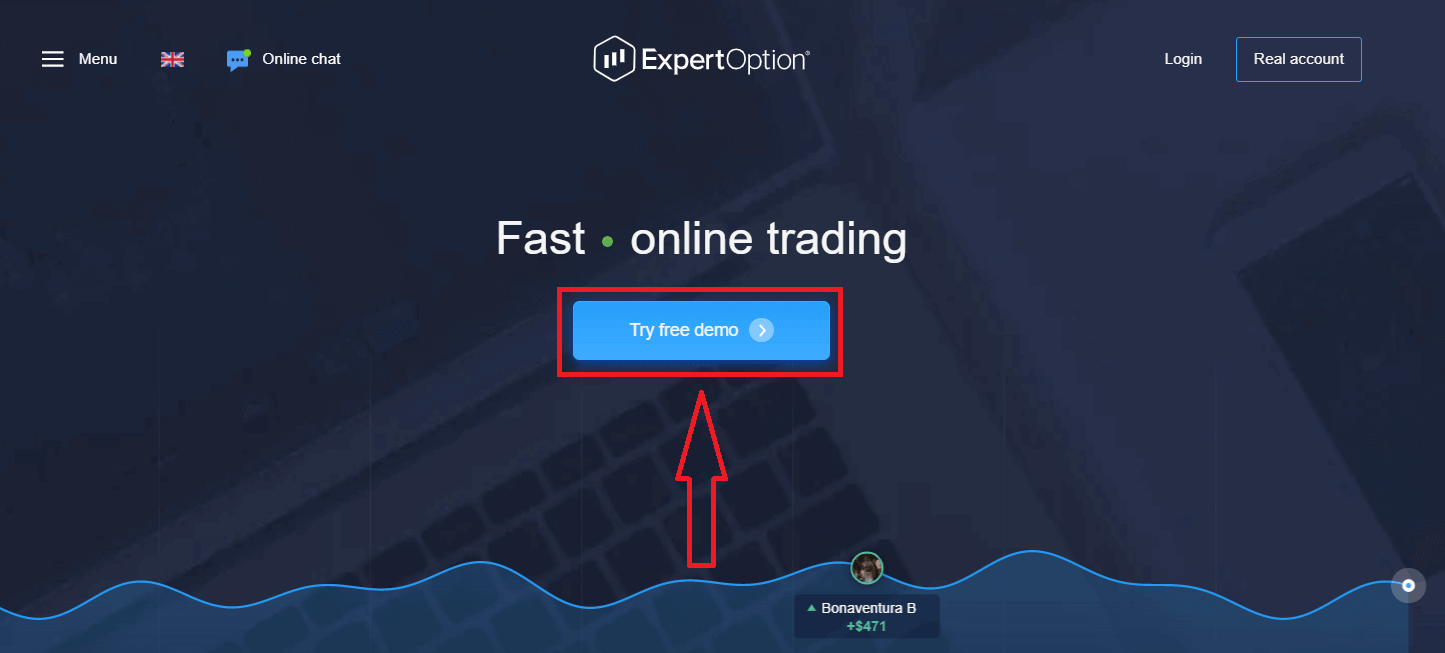
Registration on the platform is simple: Just a few clicks are required. To open the trading interface in one click, click on the “Try free demo” button.
This will take you to the Demo trading page to start trading with $10,000 in a Demo account.
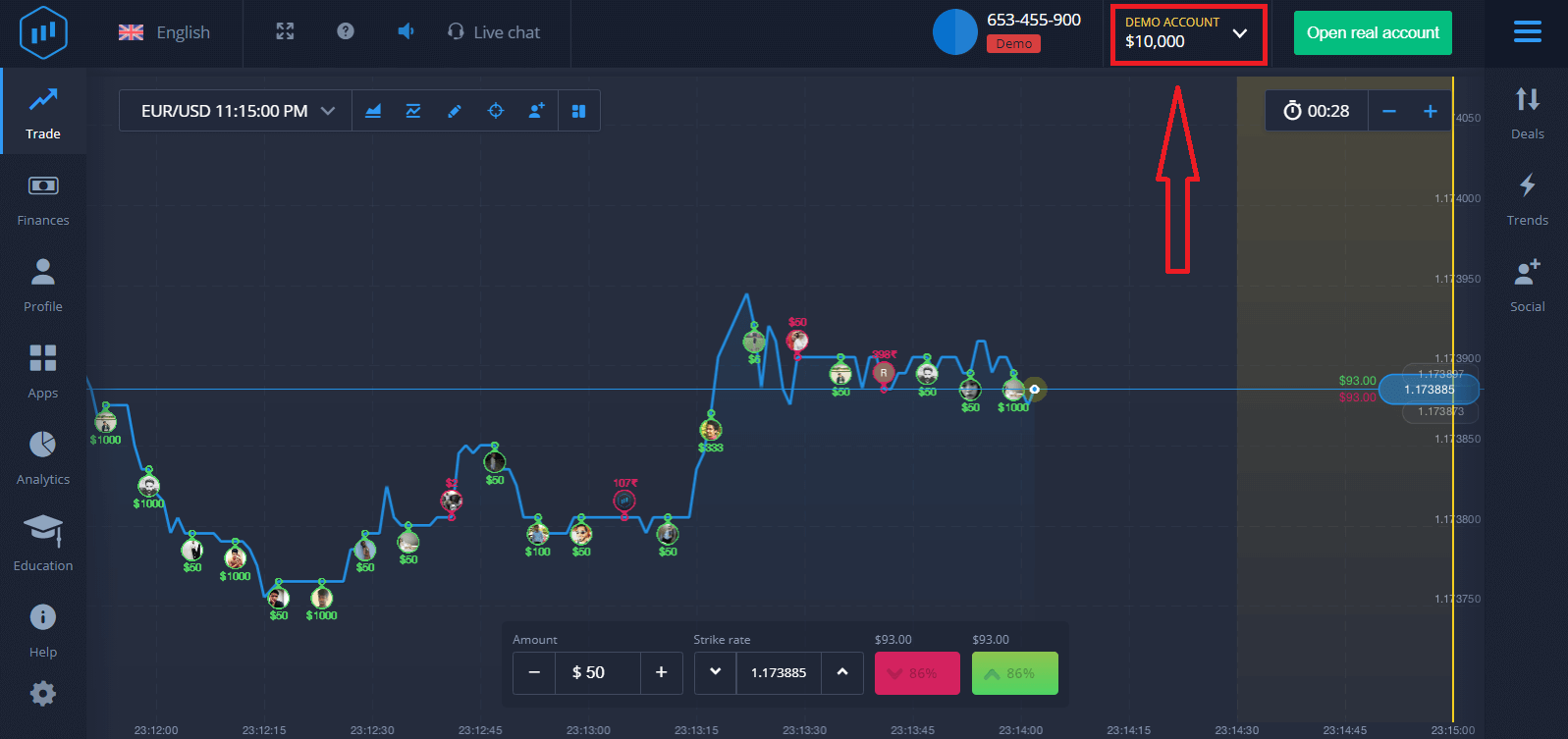 To continue using the account, save trading results, and trade on a real account. Click "Open real account" to create an ExpertOption account.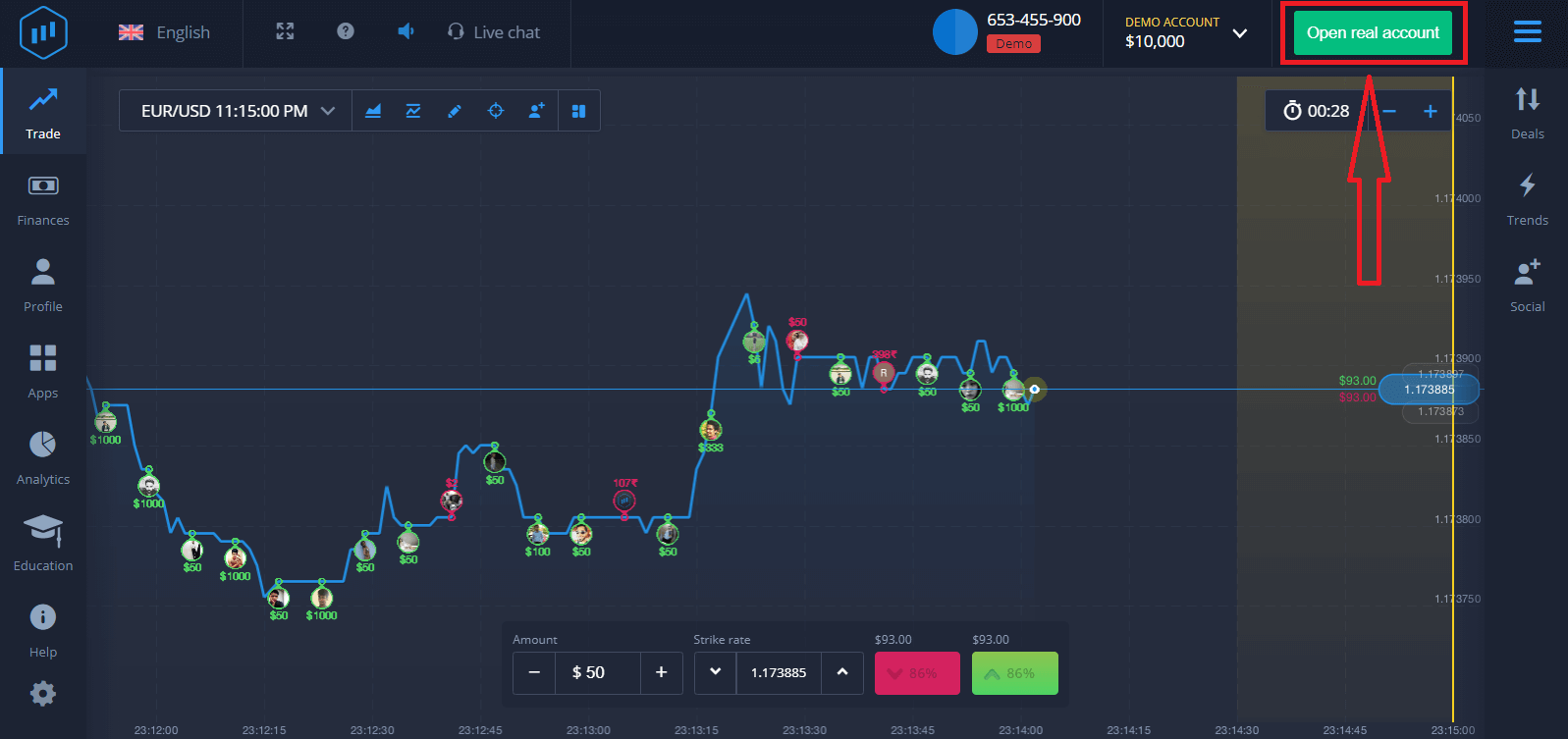
There are three available options: signing up with your email address, Facebook account, or Google account, as shown below. All you need to do is choose any suitable method and create a password.
How to Register an ExpertOption Account with an Email
1. You can sign up for an account on the platform by clicking the “Real Account” button in the upper right corner.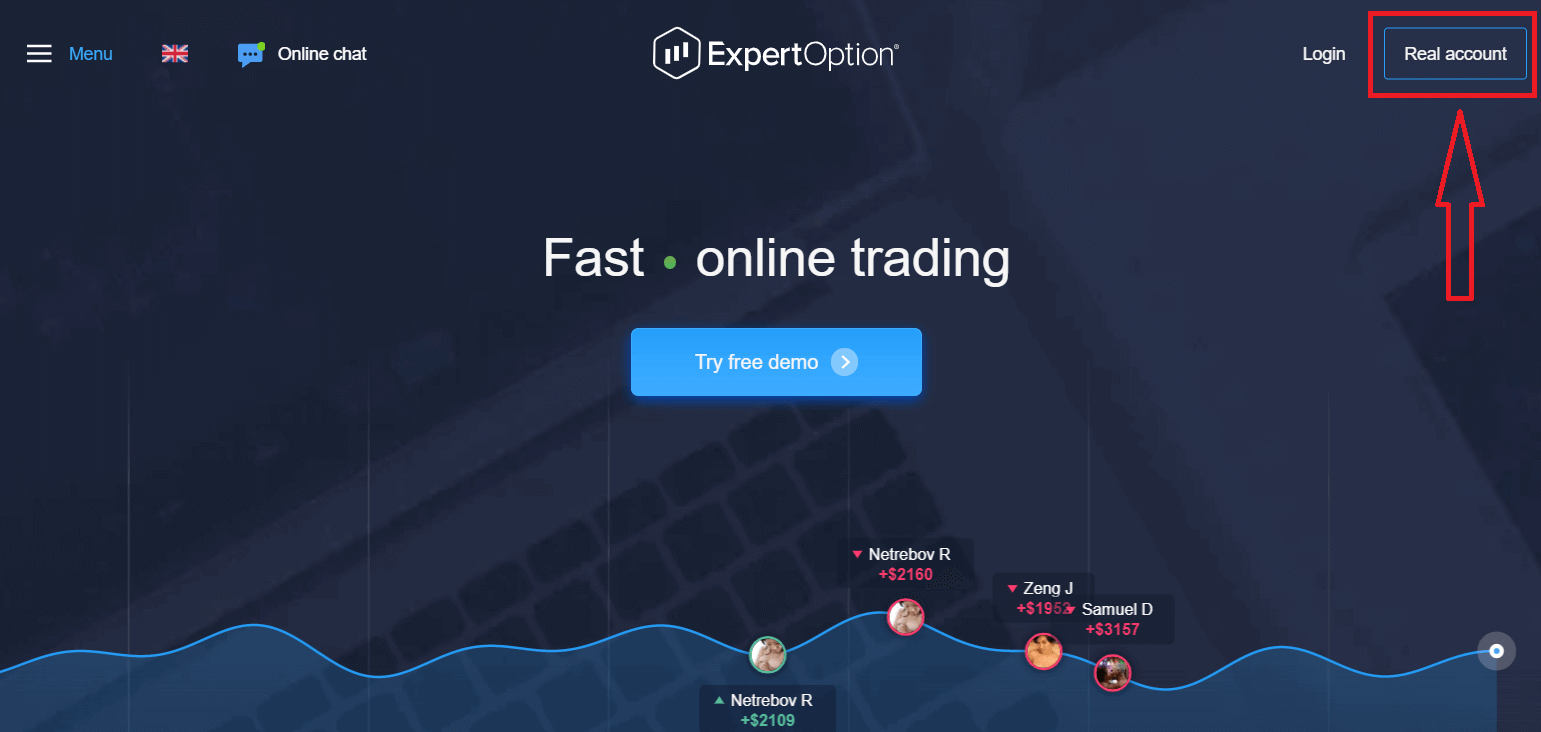
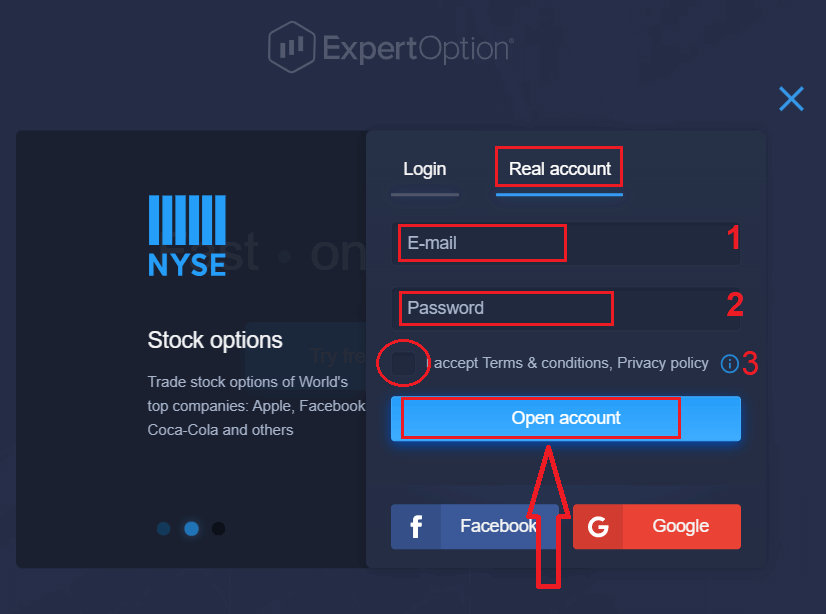
2. To sign up, please fill in all the necessary information and click "Open Account."
- Enter a valid email address.
- Create a strong password.
- You also need to read "Terms and Conditions" and check it.
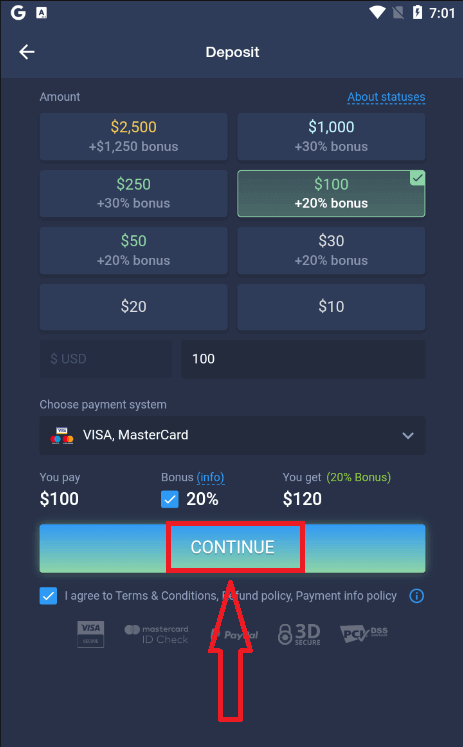
Congratulation! You have registered successfully. To start Live trading, you need to make an investment in your account (the minimum deposit is USD 10).
How to make a Deposit in ExpertOption
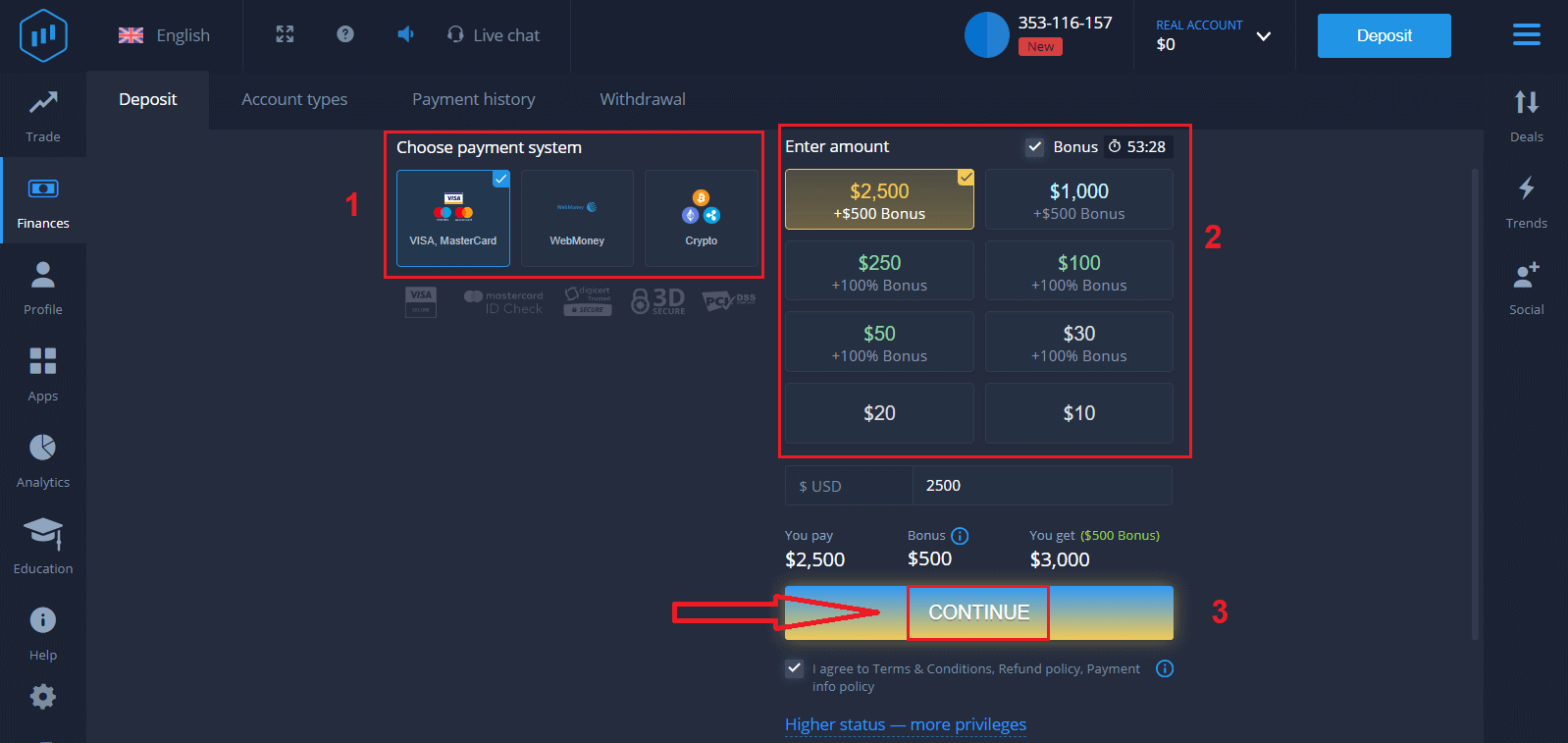
Enter the card data and click "Add funds ..."
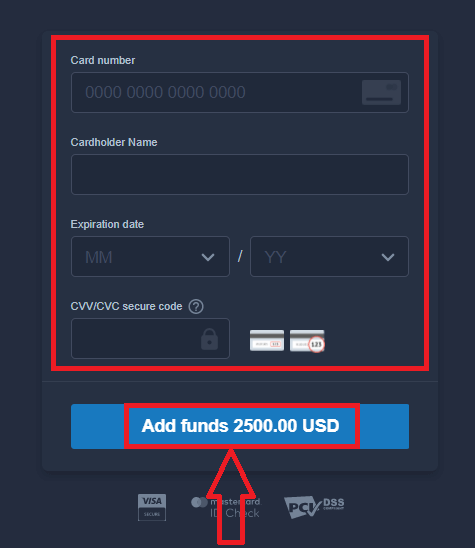
Now you can trade on a real account after depositing successfully.
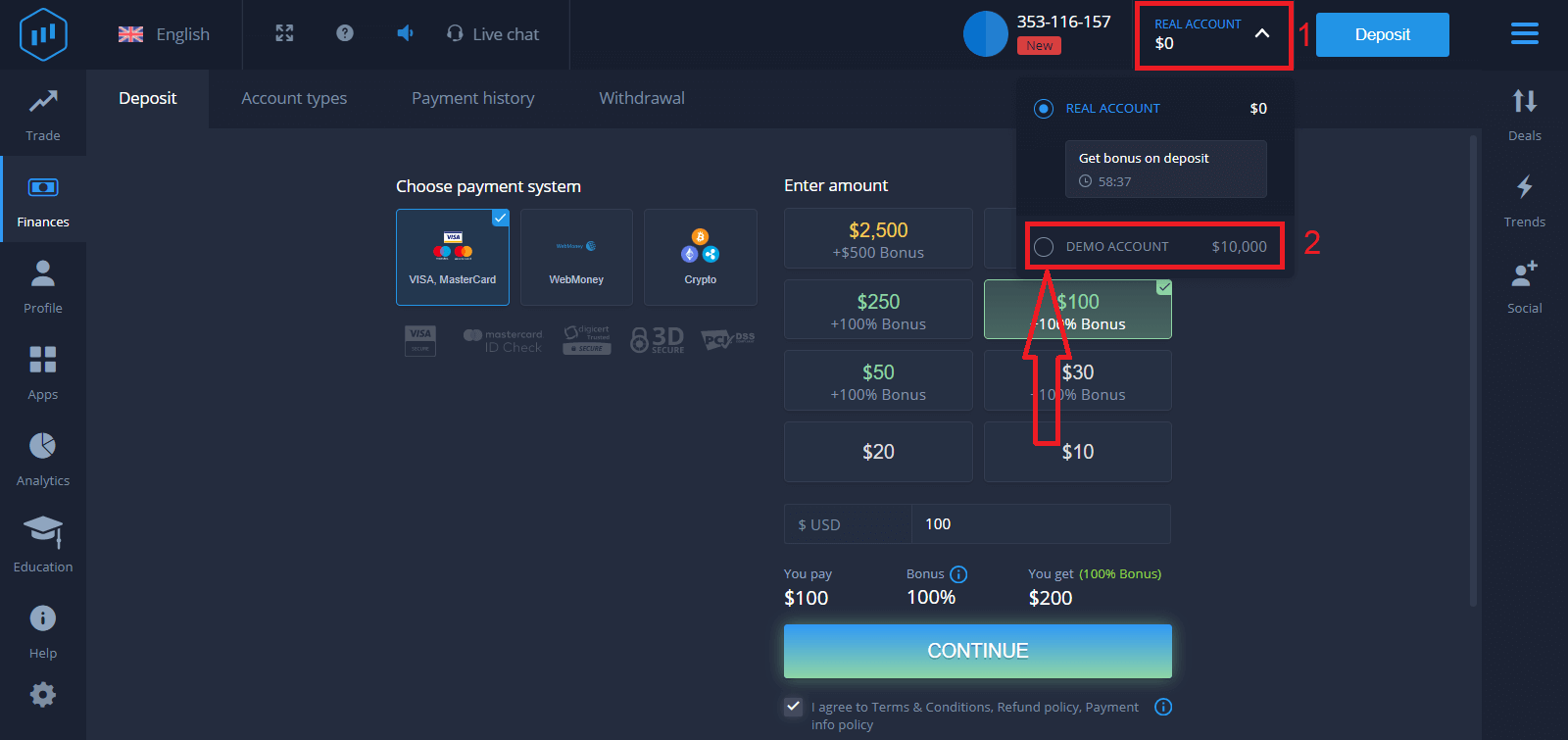
If you want to use the Demo Account, click "REAL ACCOUNT" and select "DEMO ACCOUNT" to start trading with $10,000 in the Demo Account. A demo account is a tool for you to get familiar with the platform, practice your trading skills on different assets, and try out new mechanics on a real-time chart without risks.
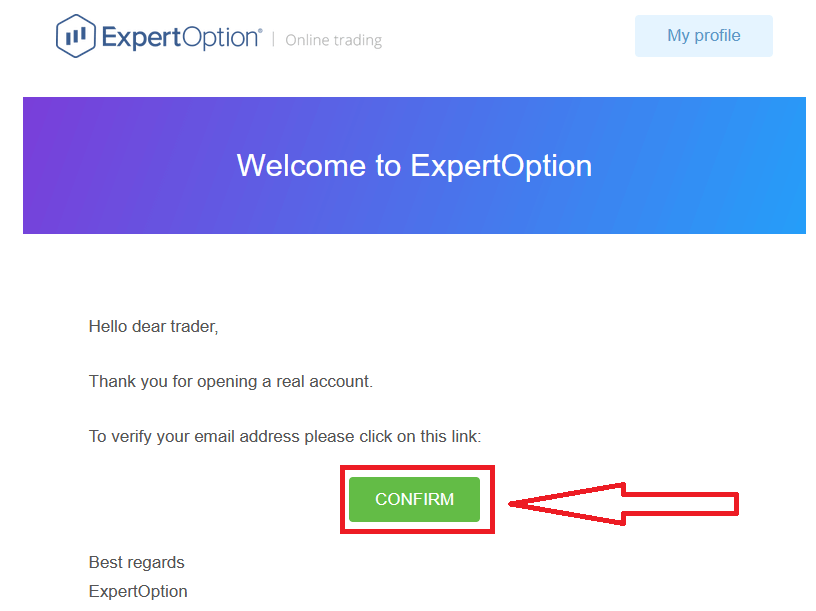
Finally, after you access your email, ExpertOption will send you a confirmation email. Click the button in that mail to activate your account. So, you will finish registering and activating your account.
How to Register an ExpertOption Account using Facebook
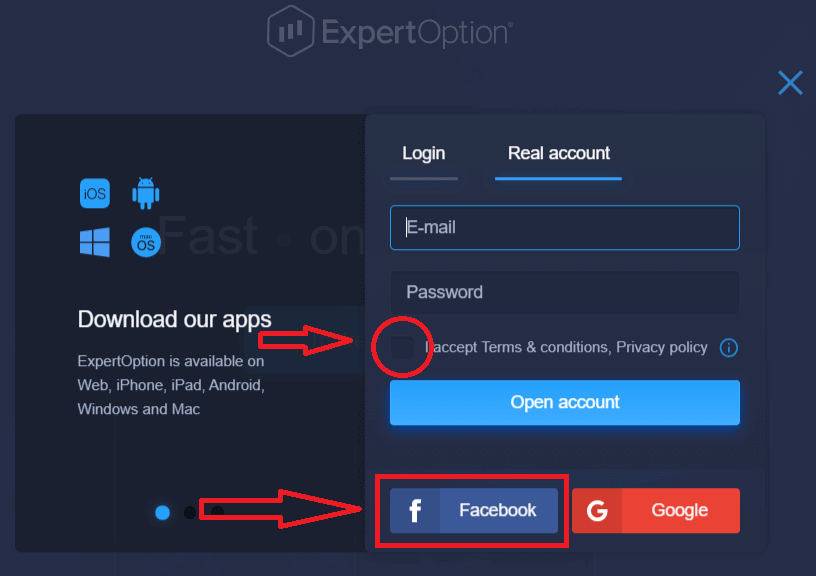
Also, you have an option to open your account by Facebook account, and you can do that in just a few simple steps:1. Check "Terms and Conditions" and click on the Facebook button
2. The Facebook login window will be opened, where you will need to enter your email address that you used to register on Facebook
3. Enter the password from your Facebook account
4. Click on “Log In.”
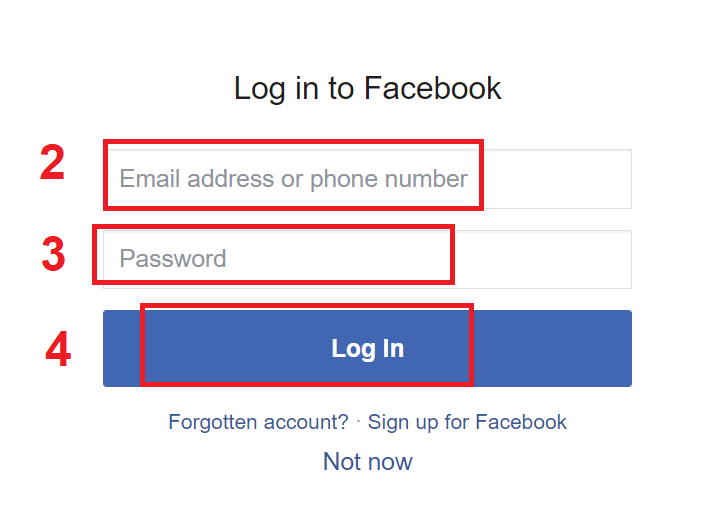
Once you’ve clicked on the “Log in” button, ExpertOption is requesting access to: Your name and profile picture, and your email address. Click "Continue..."
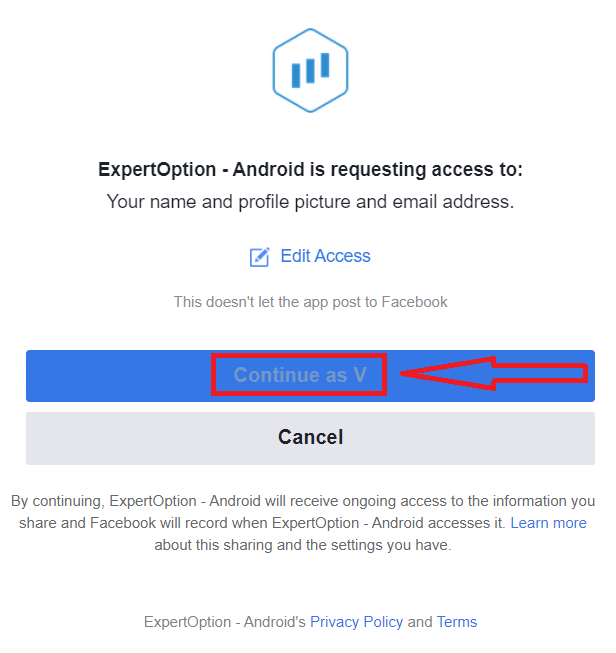
After that, you will be automatically redirected to the ExpertOption platform.
How to Register an ExpertOption Account using Google
1. To sign up with a Google account, check "Terms and Conditions" and click on the corresponding button in the registration form.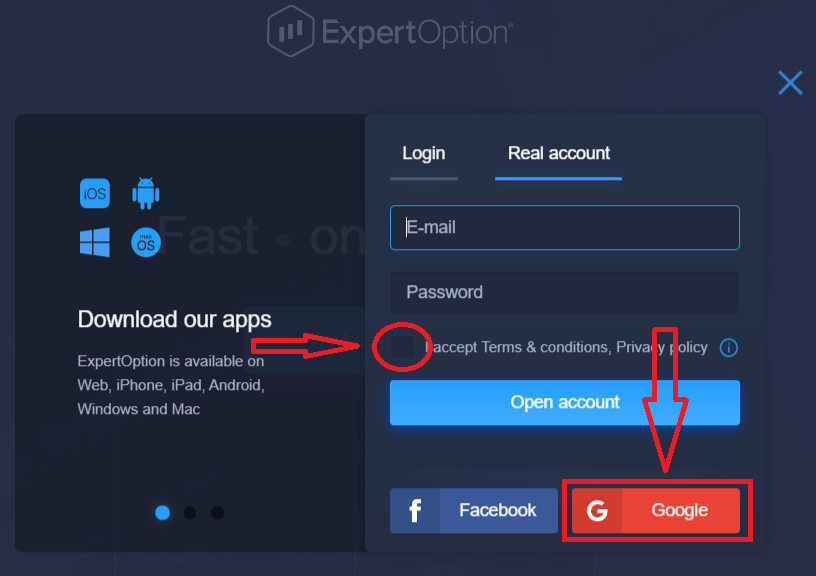
2. In the newly opened window, enter your phone number or email and click "Next".
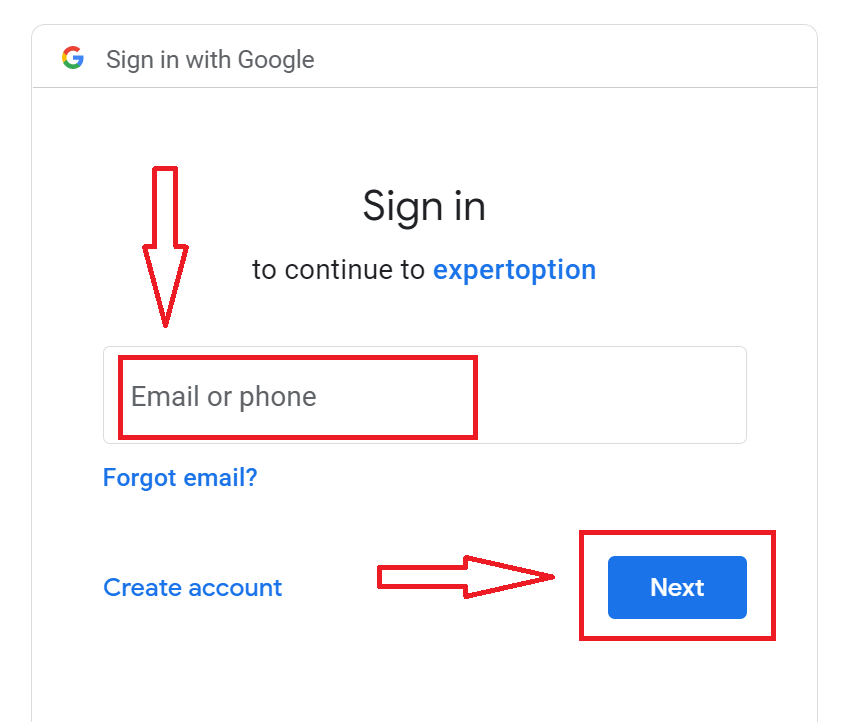
3. Then enter the password for your Google account and click “Next”.
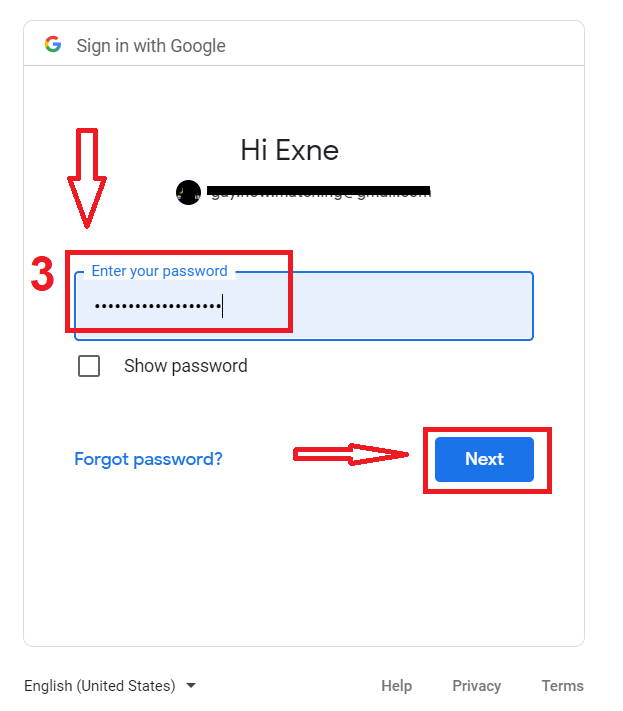
After that, follow the instructions sent from the service to your email address.
Register an Account on the ExpertOption iOS App
If you have an iOS mobile device, you will need to download the official ExpertOption mobile app from the App Store or here. Simply search for “ExpertOption - Mobile Trading” app and download it on your iPhone or iPad.The mobile version of the trading platform is exactly the same as the web version. Consequently, there won’t be any problems with trading and transferring funds.
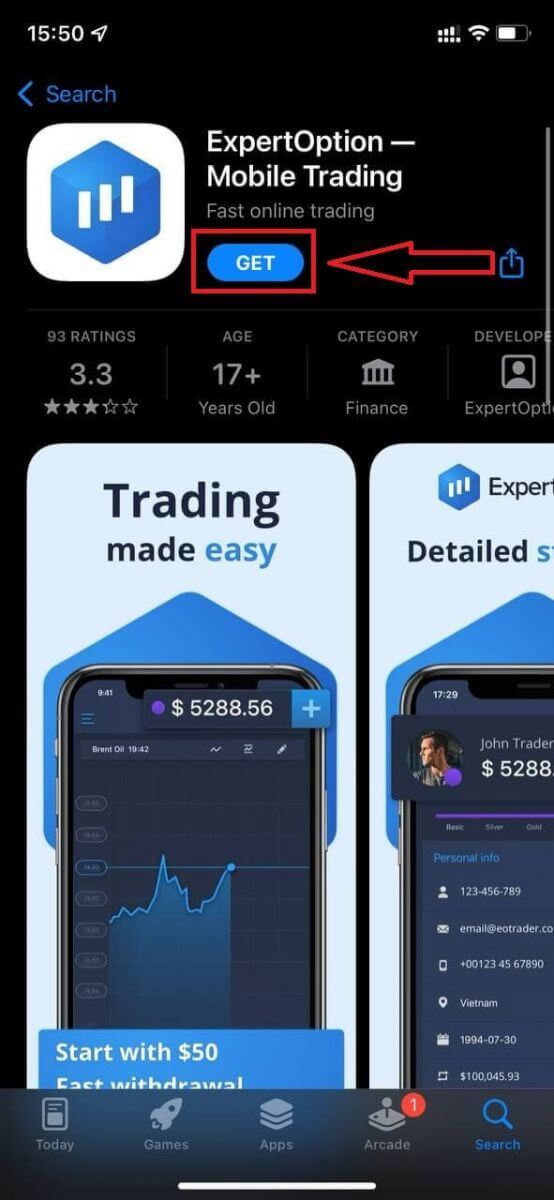
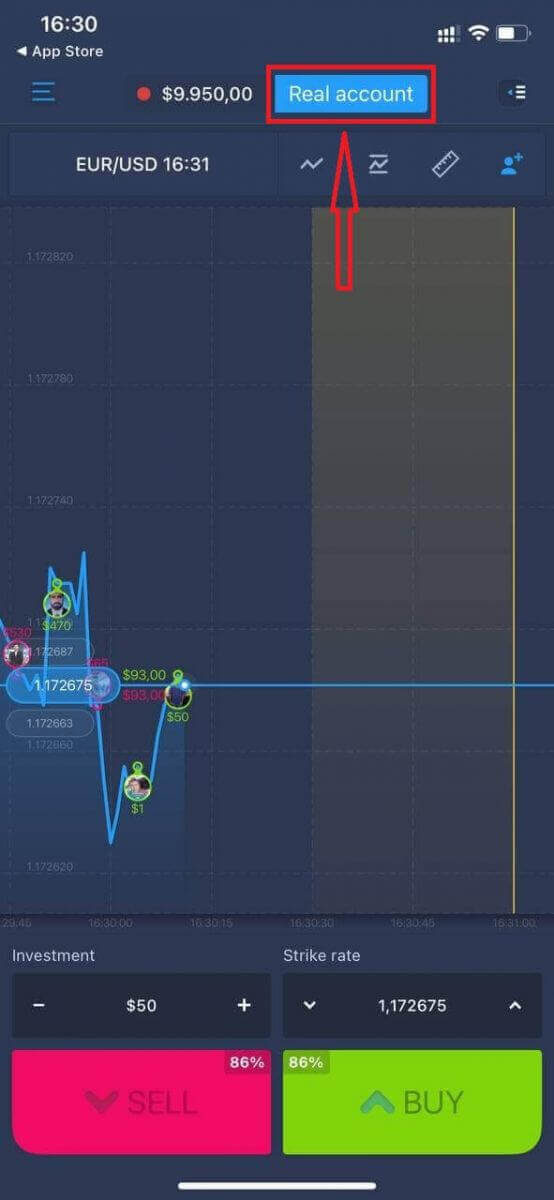
After that, open the ExpertOption app, and you will see the trading platform. Click "Buy" or "Sell" to predict where the graph will go.
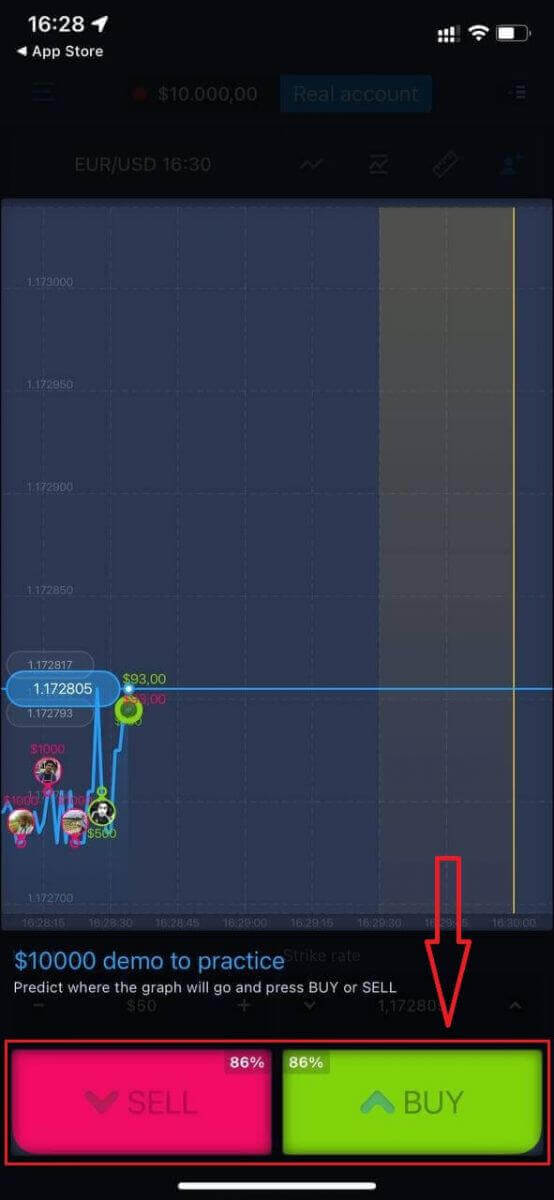
Now you can continue trading with $10,000 in the Daemo account.
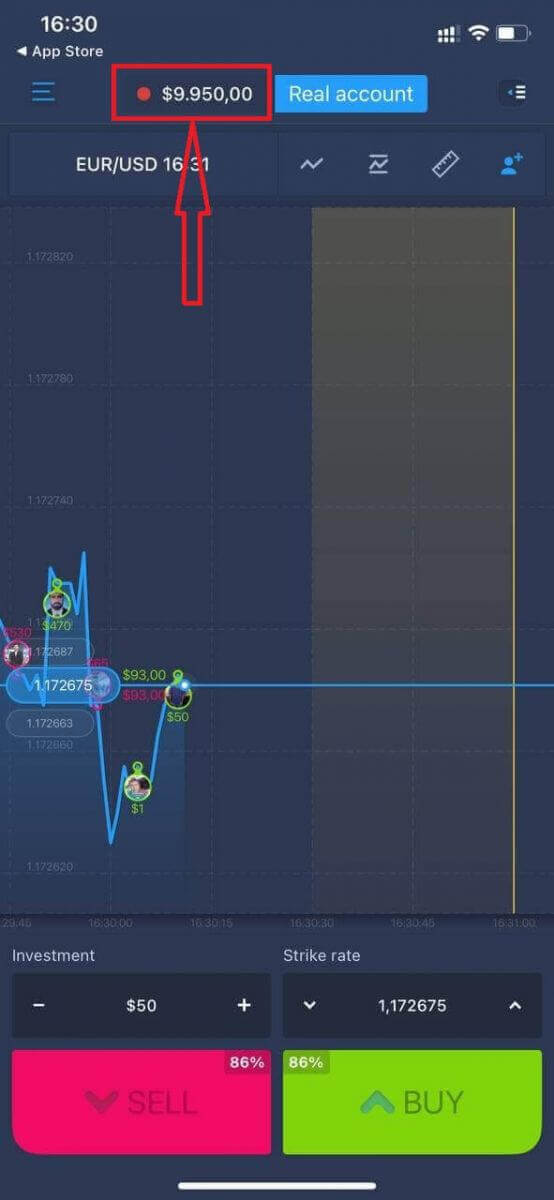
You can also open an account on the iOS mobile platform by clicking "Real account."
- Enter a valid email address.
- Create a strong password.
- You also need to accept the "Terms and Conditions."
- Click "Create account."
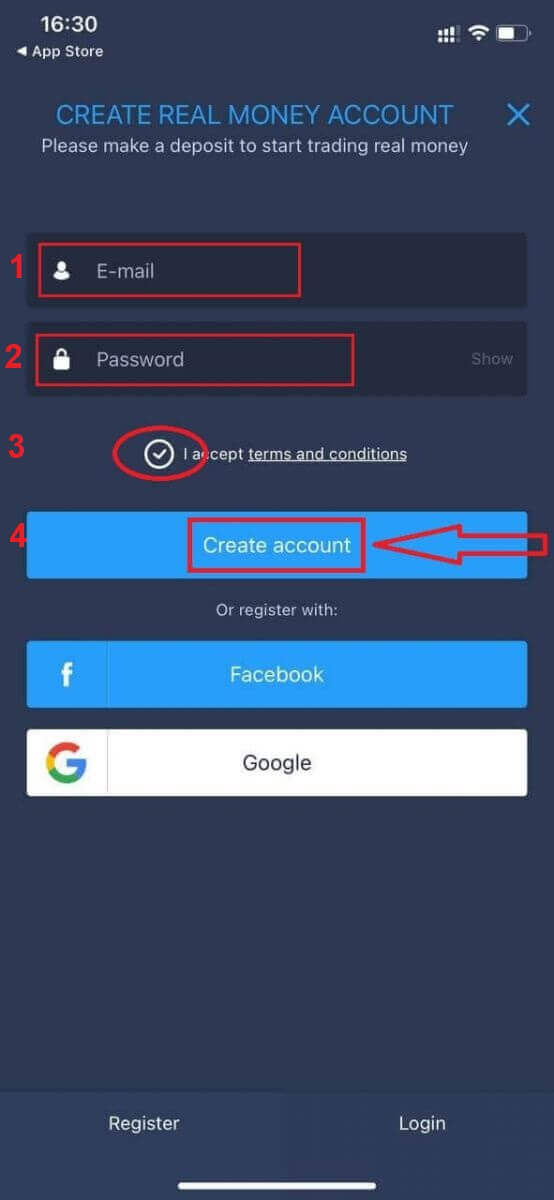
Congratulation! You have registered successfully, now you can deposit and start trading with a real account.
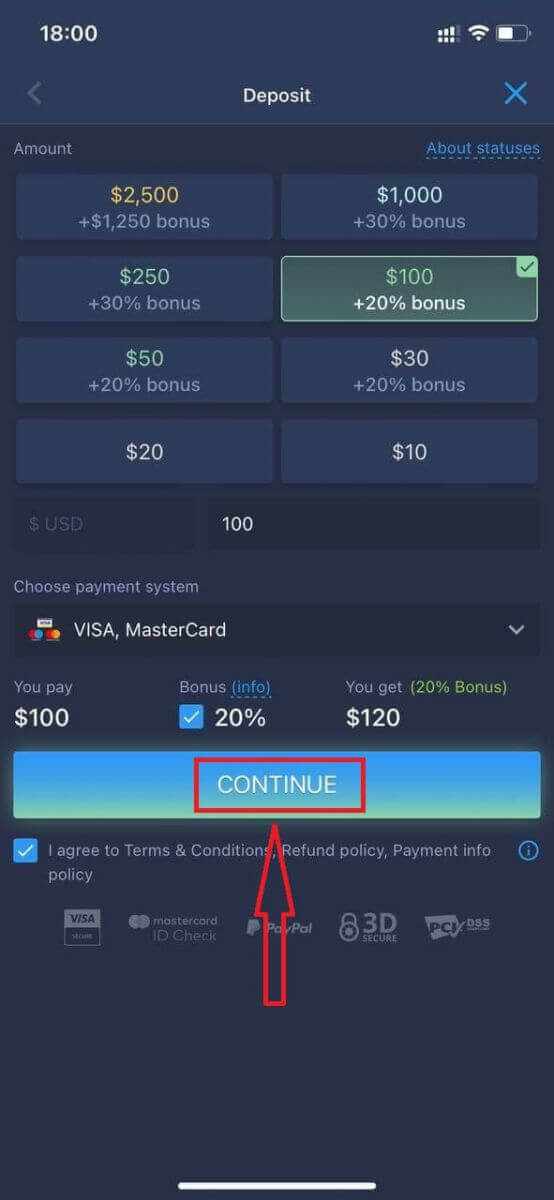
Register an Account on the ExpertOption Android App
If you have an Android mobile device, you will need to download the official ExpertOption mobile app from Google Play or here. Simply search for “ExpertOption - Mobile Trading” app and download it on your device.The mobile version of the trading platform is exactly the same as the web version. Consequently, there won’t be any problems with trading and transferring funds. Moreover, the ExpertOption trading app for Android is considered to be the best app for online trading. Thus, it has a high rating in the store.
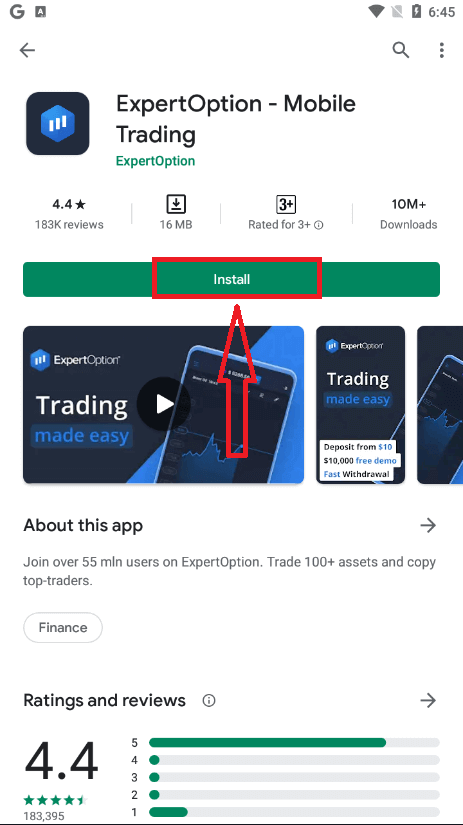
After that, open the ExpertOption app, and you will see the trading platform. Click "Buy" or "Sell" to predict where the graph will go.
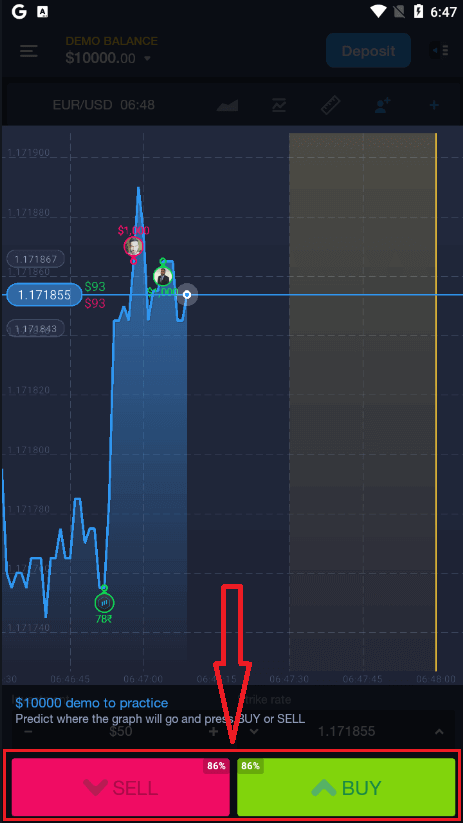
Now you can continue trading with $10,000 in a Demo account.
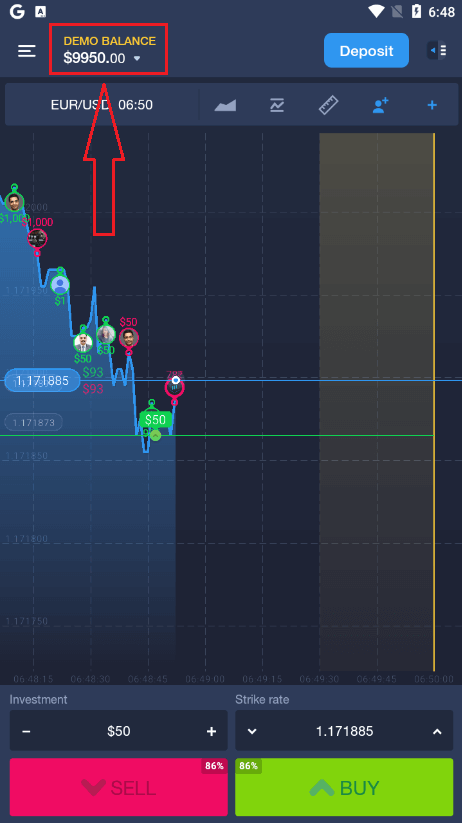
You can also open an account on the Android mobile platform by clicking "DEMO BALANCE," then clicking "Open real account."
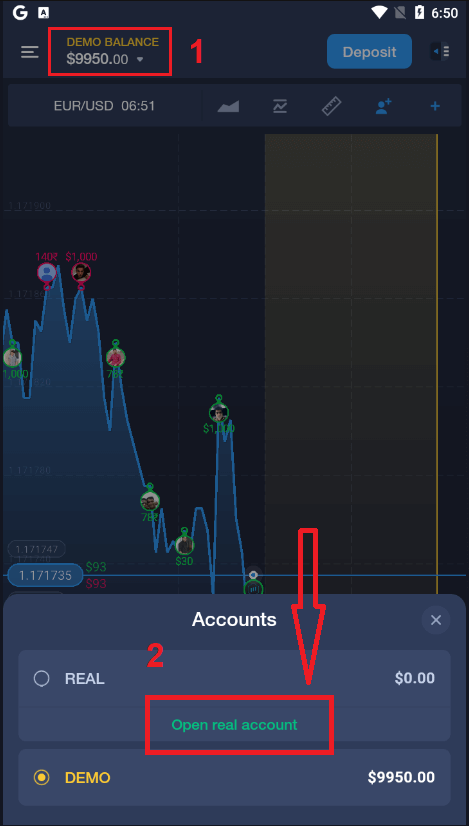
- Enter a valid email address.
- Create a strong password.
- You also need to accept the "Terms and Conditions."
- Click "Create account."
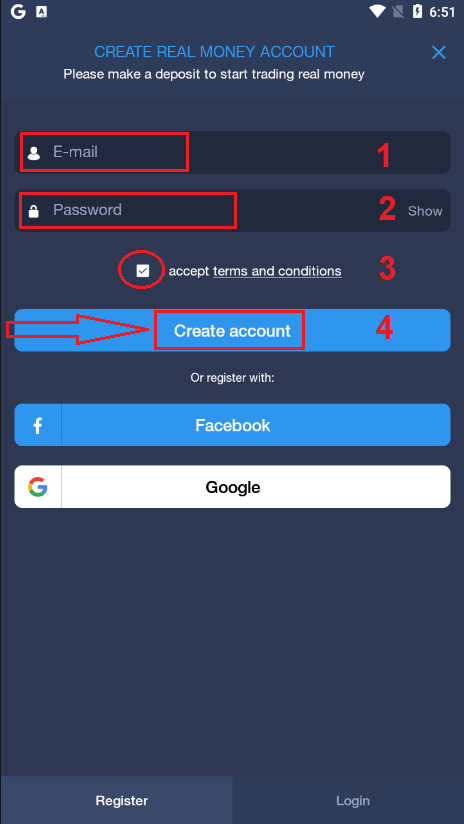
Congratulation! You have registered successfully, now you can deposit and start trading with the real account.t
Register an ExpertOption Account on the Mobile Web
If you want to trade on the mobile web version of the ExpertOption trading platform, you can easily do it. Initially, open up your browser on your mobile device. After that, search for “expertoption” and visit the official website of the broker.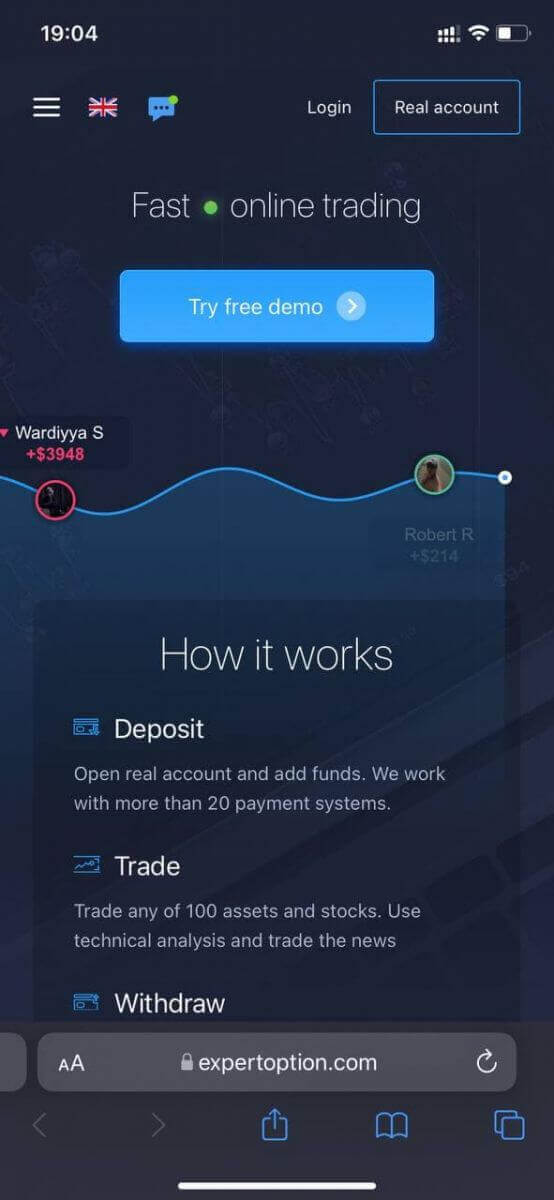
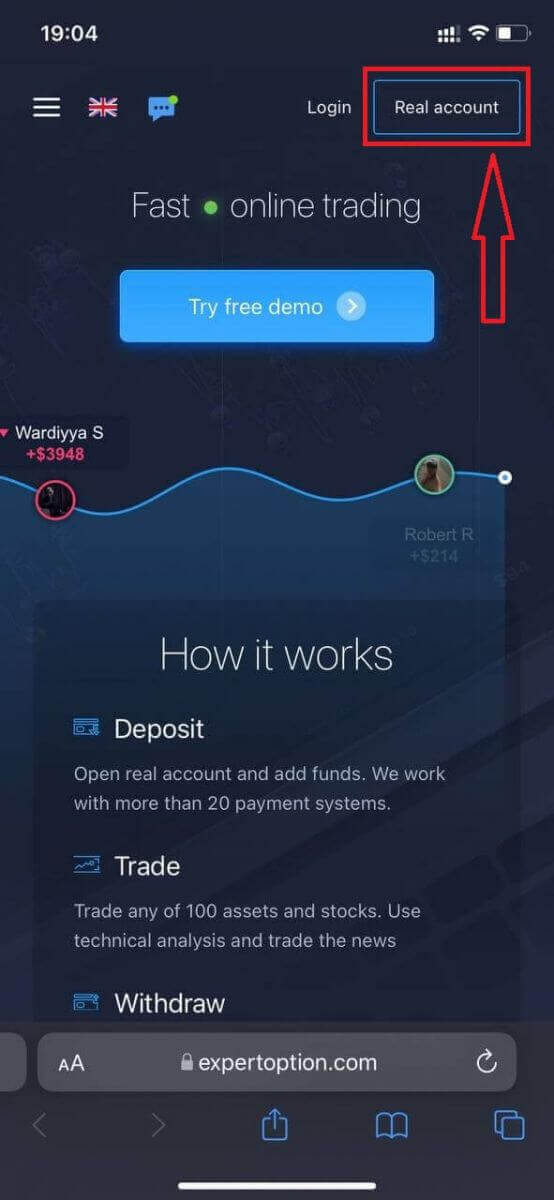
Click the "Real account" button in the upper right corner.
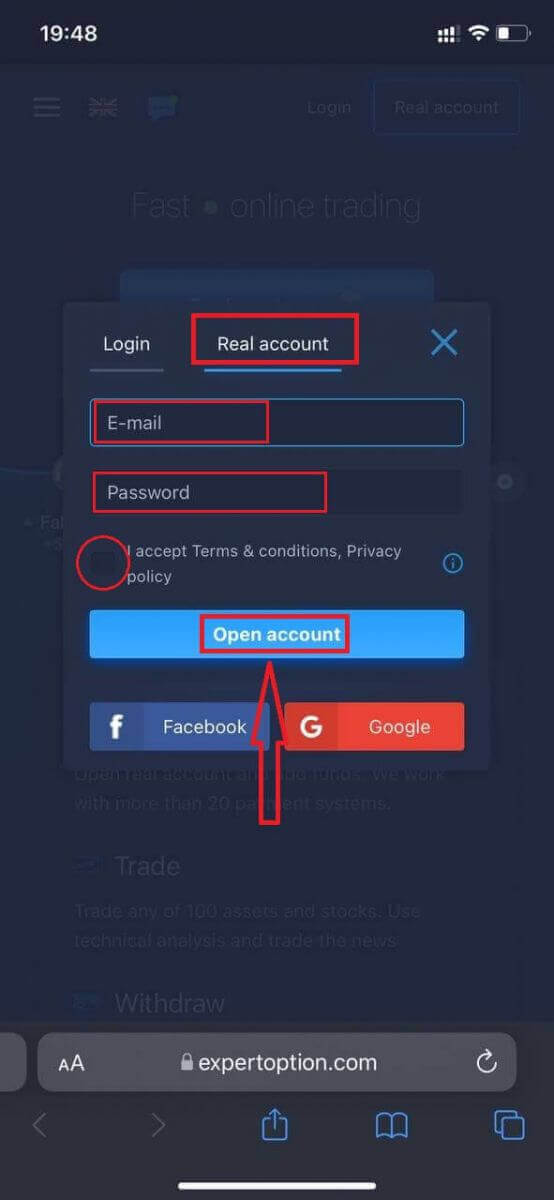
At this step, we still enter the data: email, password, accept "Terms and Conditions", and click "Open account"
Congratulation! You have registered successfully. Now you can deposit and start trading with a real account.
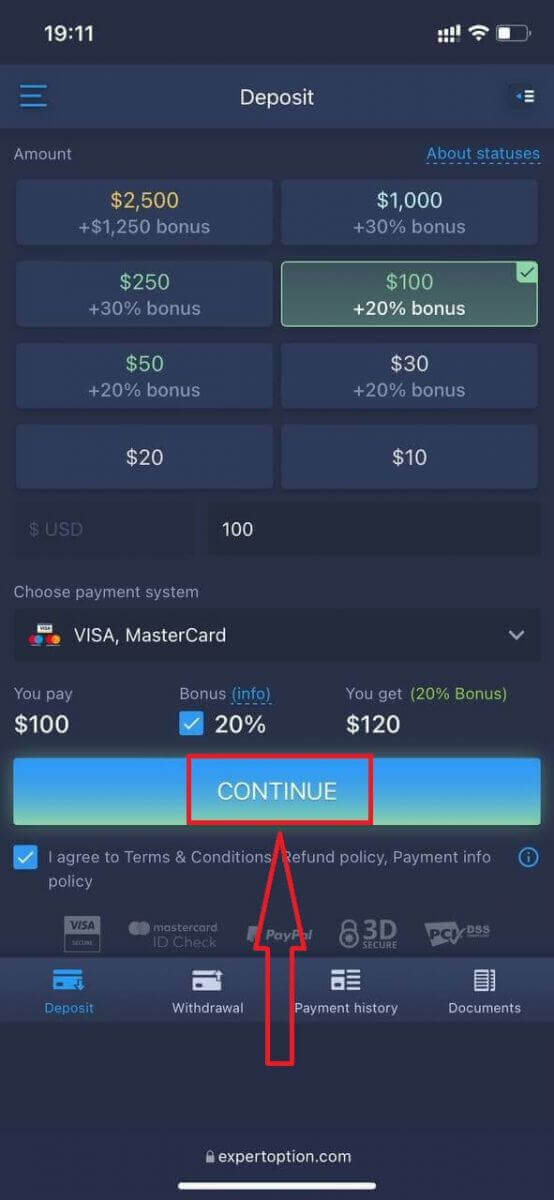
The mobile web version of the trading platform is exactly the same as the regular web version. Consequently, there won’t be any problems with trading and transferring funds.
Or you want to trade with a Demo account first, to do that by clicking the menu icon.n
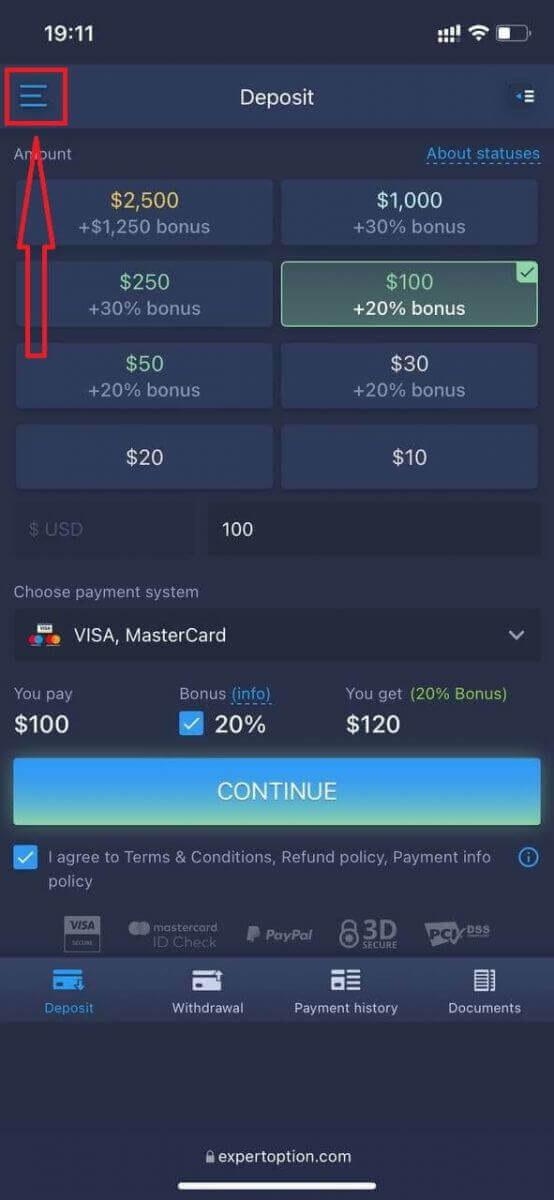
Click "Trade."
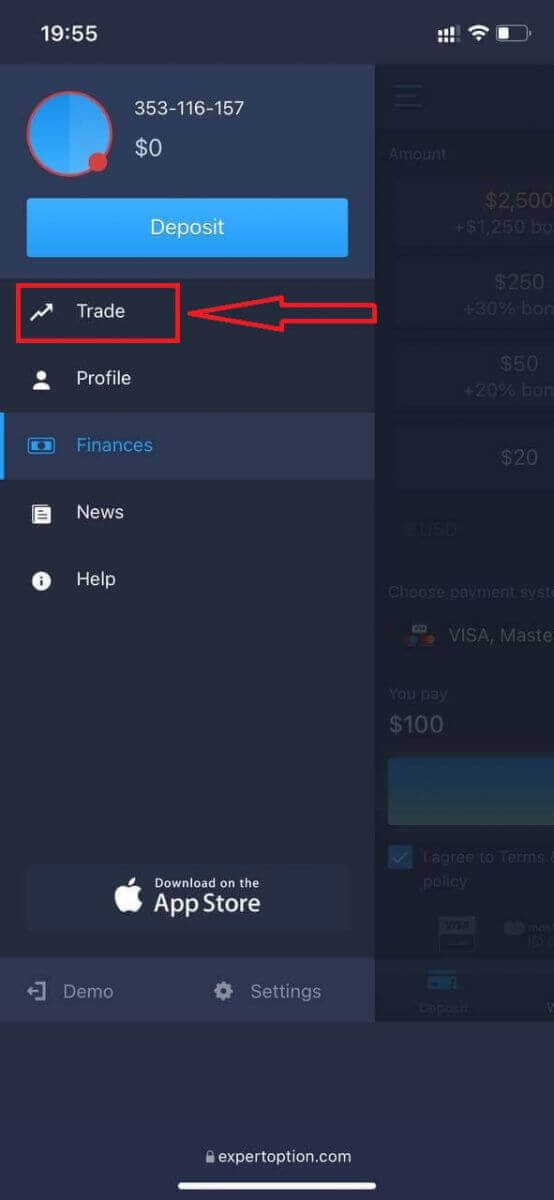
Switch accounts from the Real account to the Demo account. nt
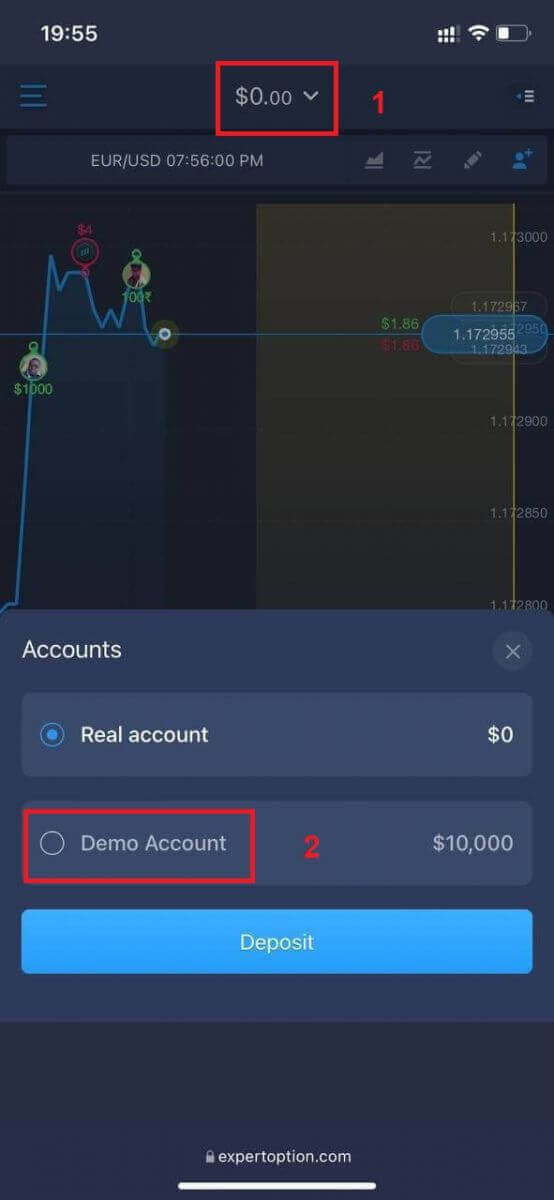
You will have $10,000 in the demo account.
Frequently Asked Questions (FAQ)
Is there a demo account?
We invite you to use a demo account with a balance of 10,000 virtual money to be able to evaluate the benefits of the trading platform.
How much money can I make on the practice account?
You can’t take any profit from transactions you complete on the practice account. You get virtual funds and make virtual transactions. It is intended for training purposes only. To trade using real money, you need to deposit funds into a real account.
How do I switch between the practice account and the real account?
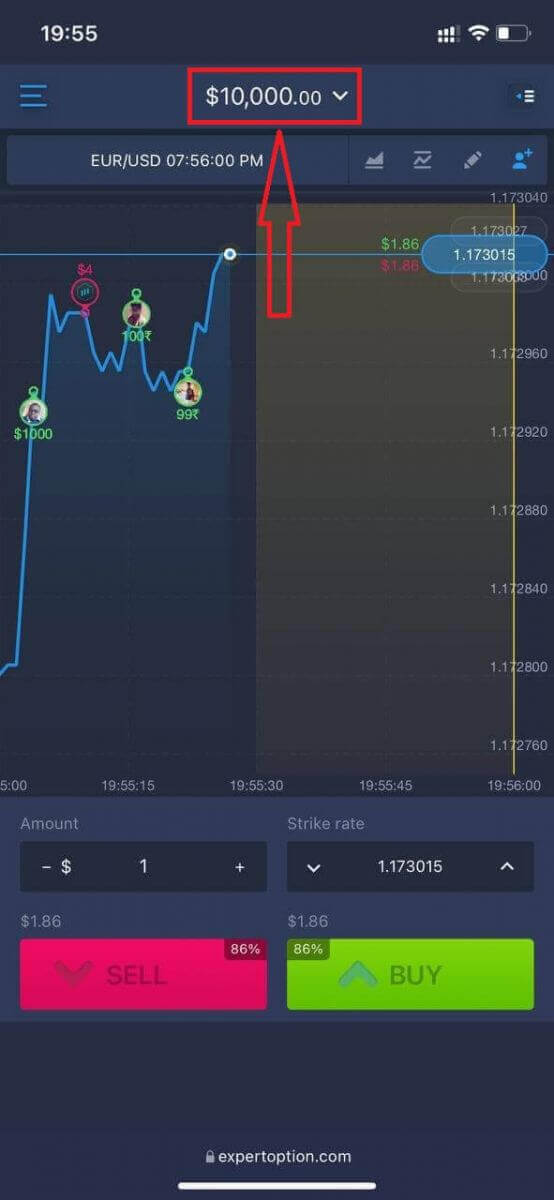
To switch between accounts, click your balance in the upper-center corner. Make sure you are in the traderoom. The panel that opens shows all your accounts: your real account and your practice account. Click an account to make it active so you can use it for trading.How to Log In to ExpertOption
How to Log In to the ExpertOption Account
- Go to the mobile ExpertOption App or Website.
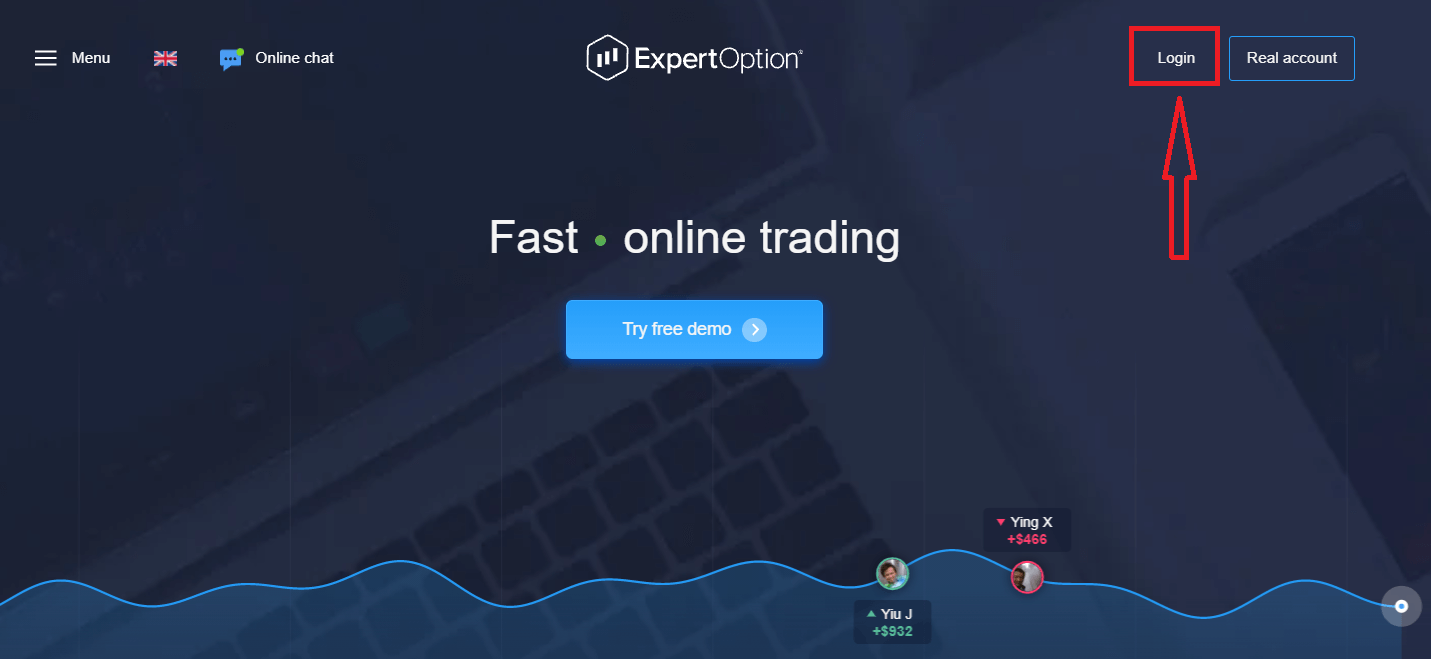
- Click on “Login”.
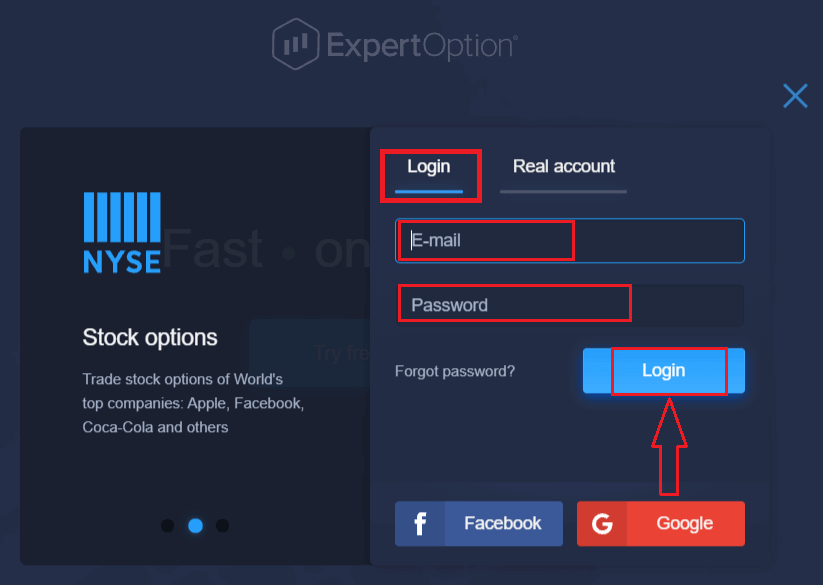
- Enter your email and password.
- Click on the “Log in” blue button.
- If you forgot your email, you can log in using “Google” or “Facebook”.
- If you forgot your password, click on “Forgot Password”.
Click "Login", sign-in form will appear.
Enter your email address and password that you registered to log into your account with, and click the "Login" button.
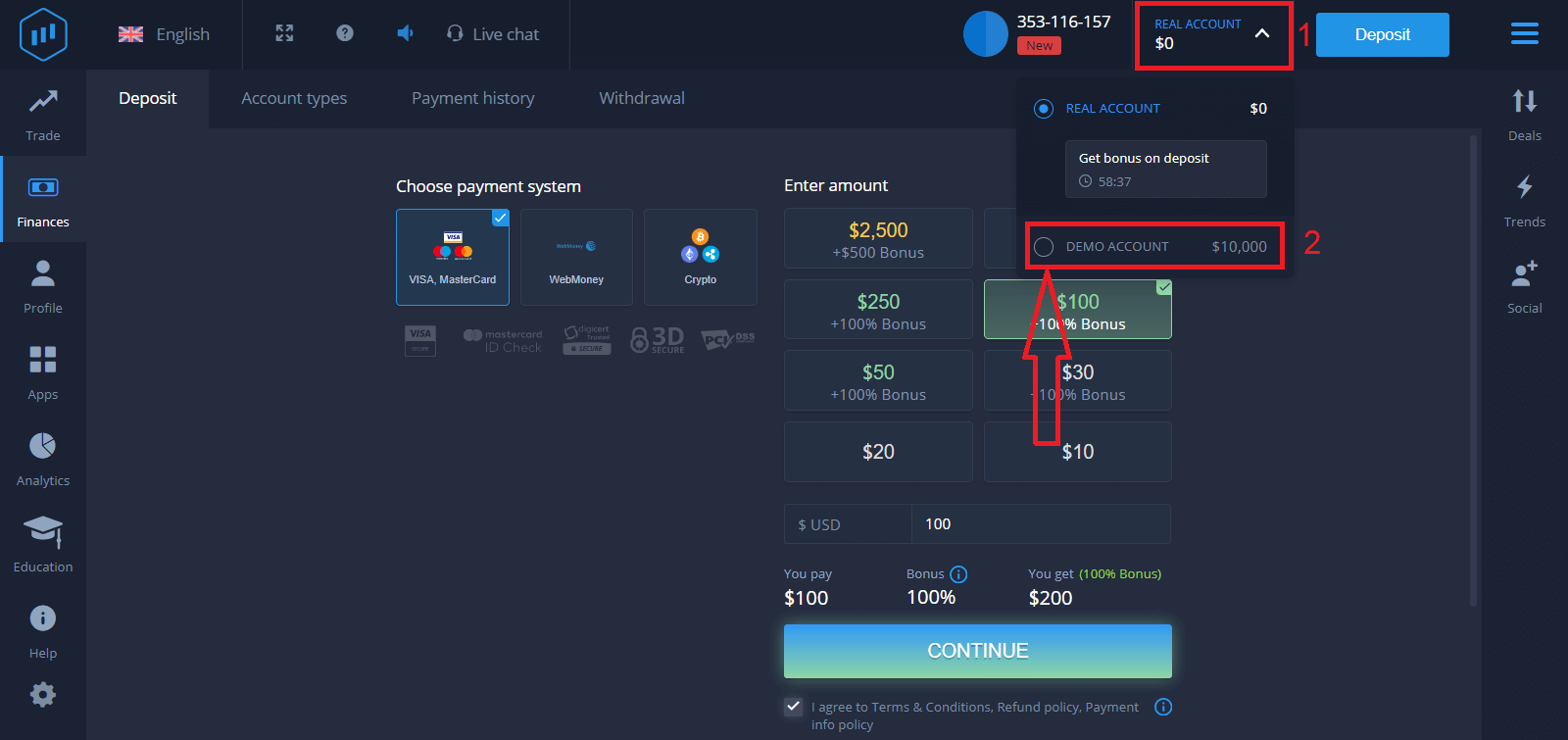
After logging in successfully, you will see the Deposit page as shown below. To start Live trading, you need to make an investment in your account (the minimum deposit is USD 10).
How to make a Deposit in ExpertOption
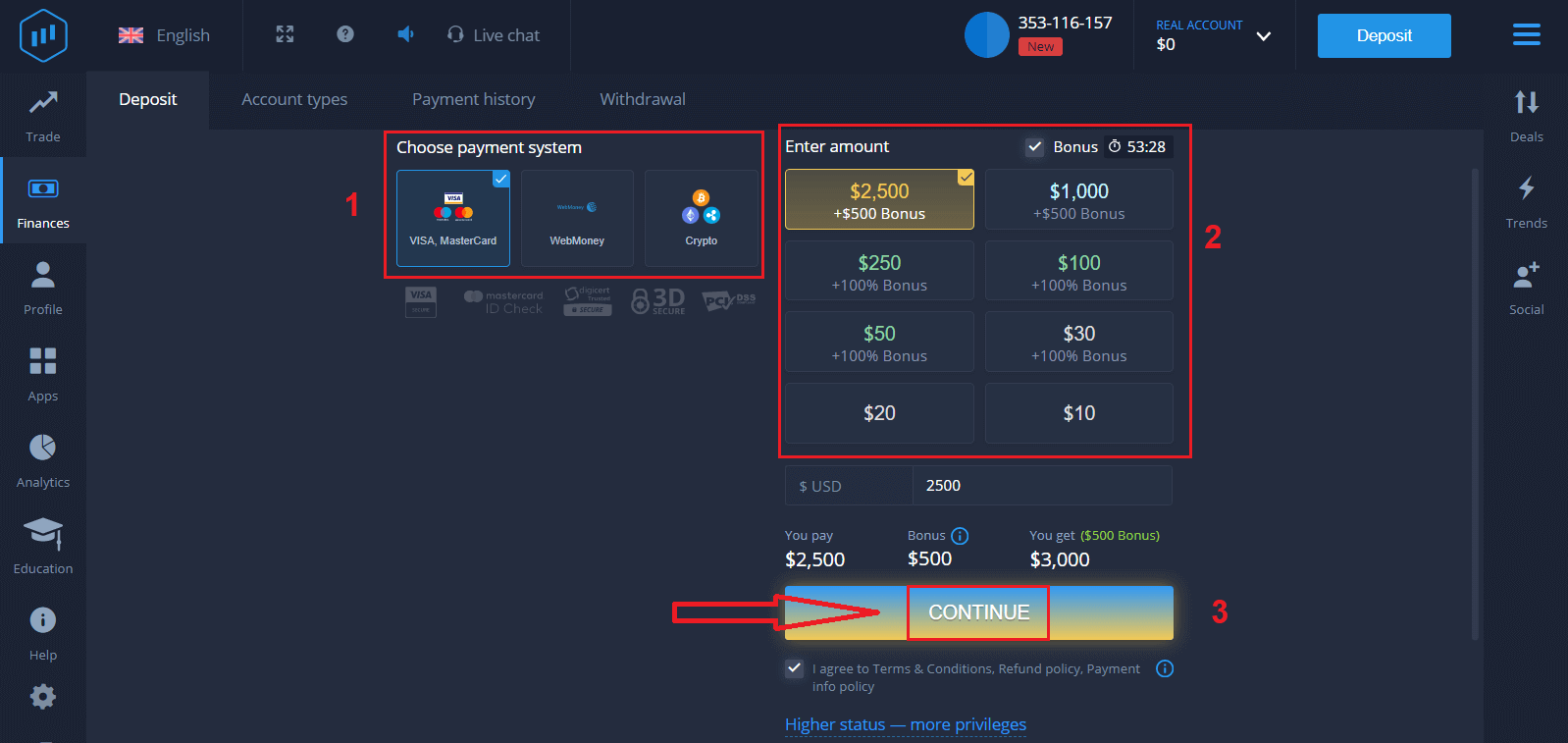
Enter the card data and click "Add funds ..."
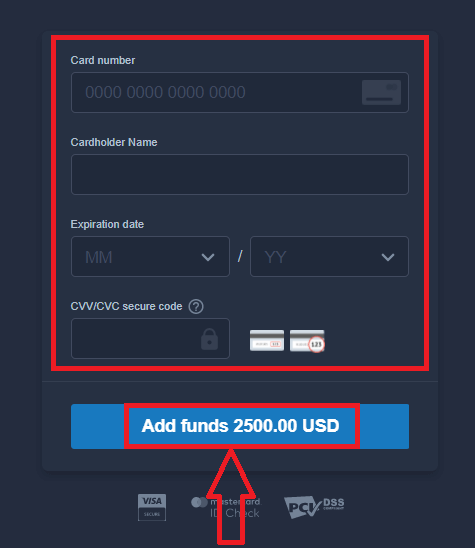
Now you can trade on a real account after depositing successfully.
If you want to use the Demo Account, click "REAL ACCOUNT" and select "DEMO ACCOUNT" to start trading with $10,000 in the Demo Account. A demo account is a tool for you to get familiar with the platform, practice your trading skills on different assets, and try out new mechanics on a real-time chart without risks.
How to Log In to ExpertOption using Facebook
You can also log in to the website using your personal Facebook account by clicking on the Facebook button.1. Click on the Facebook button
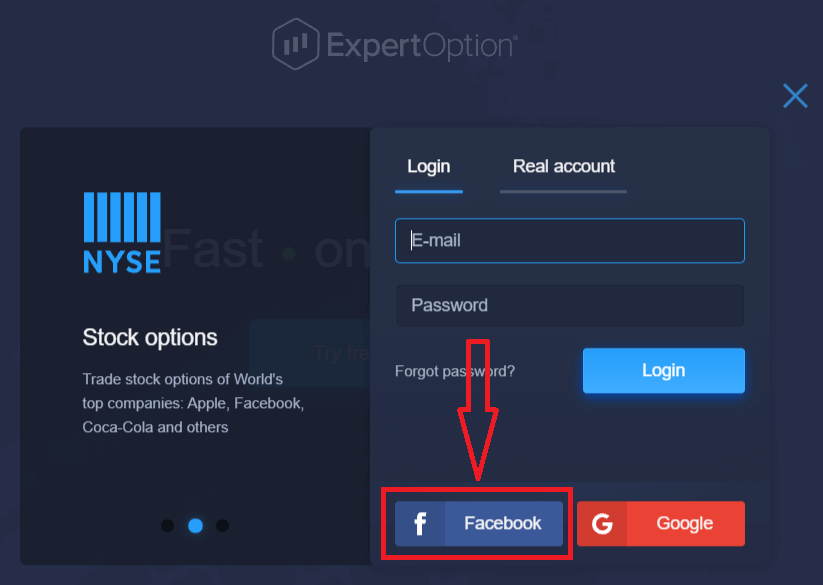
2. The Facebook login window will be opened, where you will need to enter your email address that you used to register on Facebook
3. Enter the password from your Facebook account
4. Click on “Log In.”
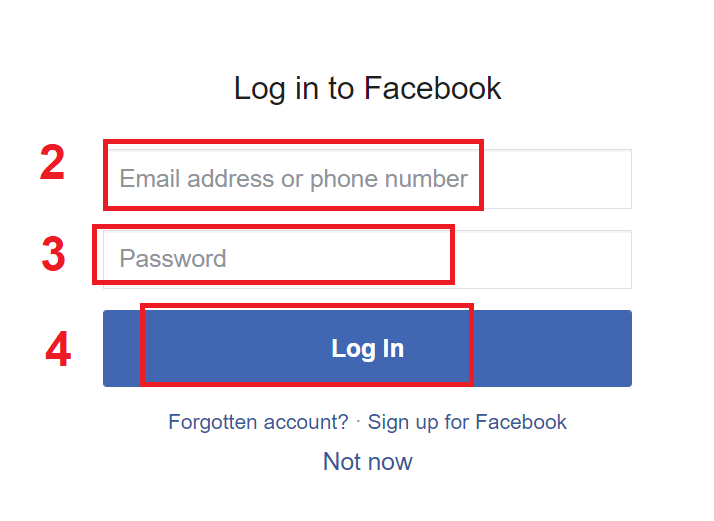
Once you’ve clicked on the “Log in” button, ExpertOption will request access to: Your name and profile picture, and email address. Click "Continue..."
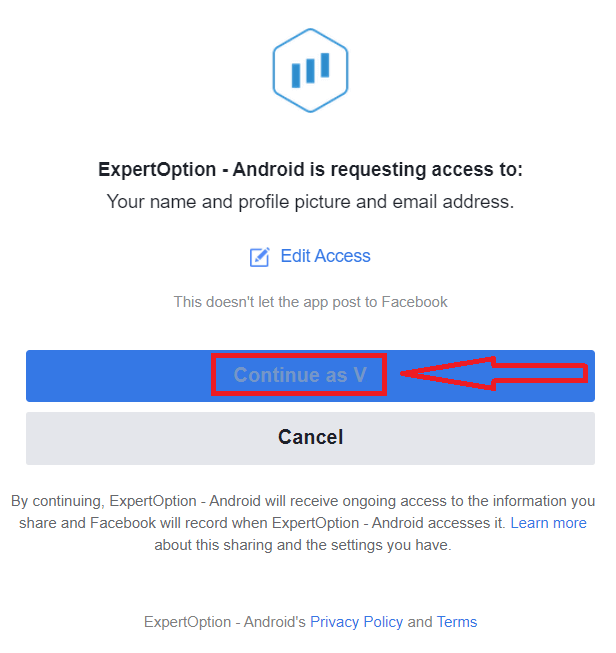
After that, you will be automatically redirected to the ExpertOption platform.
How to Log In to ExpertOption using Google
1. For authorization through your Google account, you need to click on the Google button.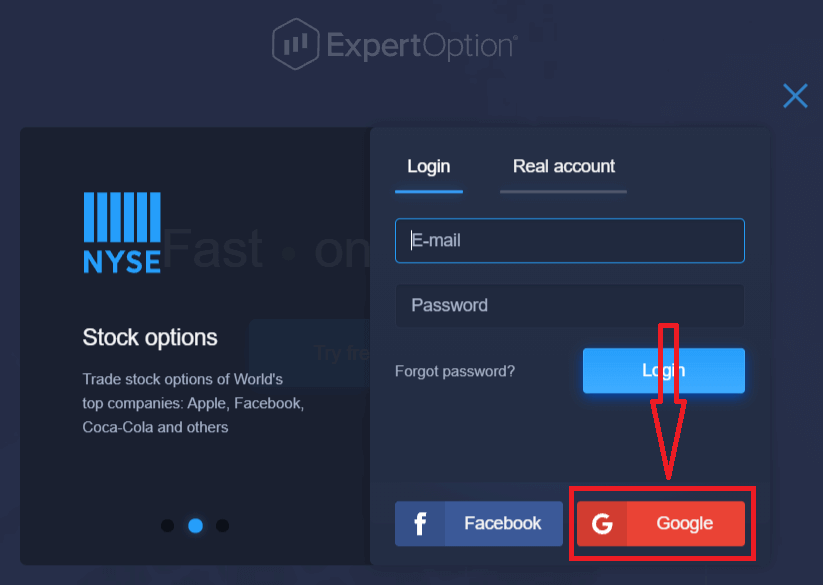
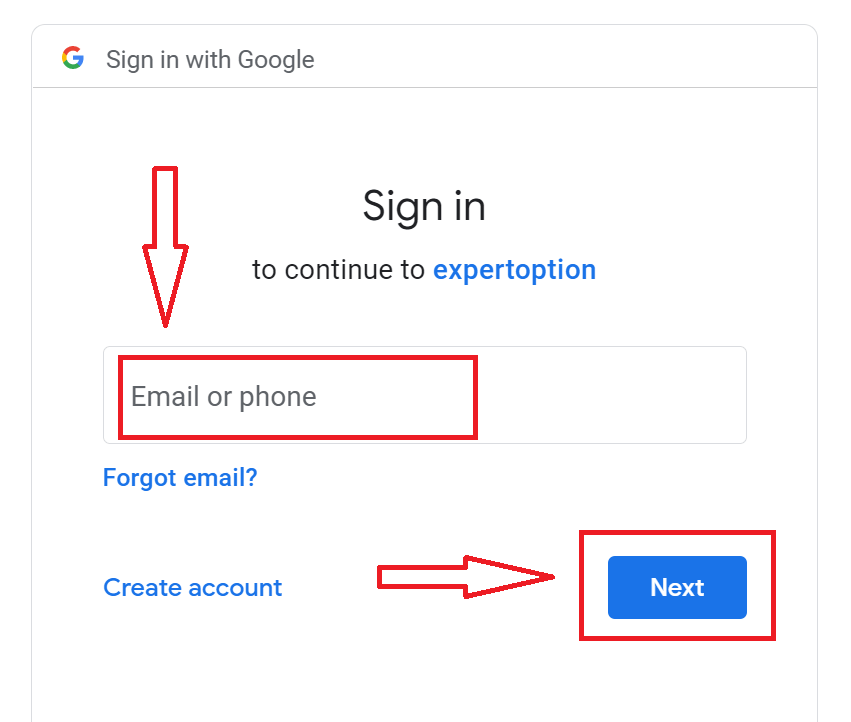
2. Then, in the new window that opens, enter your phone number or email and click “Next”. The system will open a window, and you will be asked for the password for your Google account.
3. Then enter the password for your Google account and click “Next”.
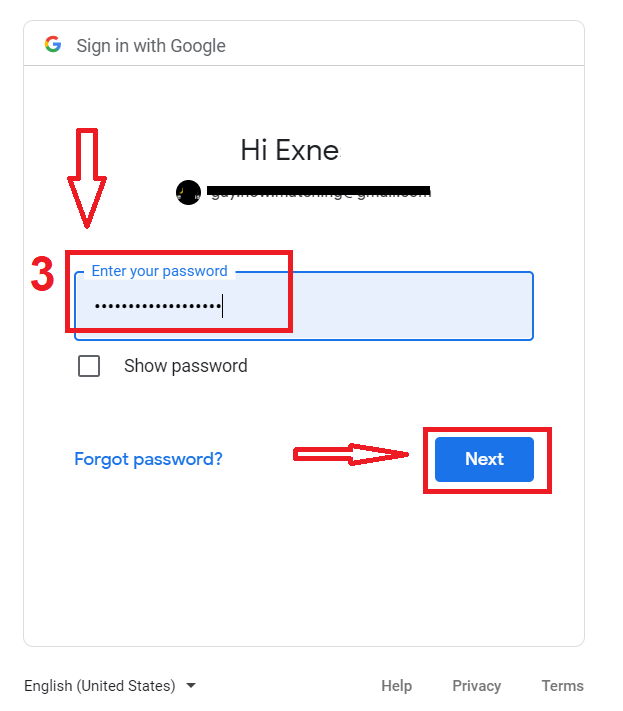
After that, follow the instructions sent from the service to your email address. You will be taken to your personal ExpertOption account.
Recover Your ExpertOption Account Password
Don’t worry if you can’t log into the platform; you might just be entering the wrong password. You can come up with a new one.If you use the web version
To do that, click the "Forgot Password" link.
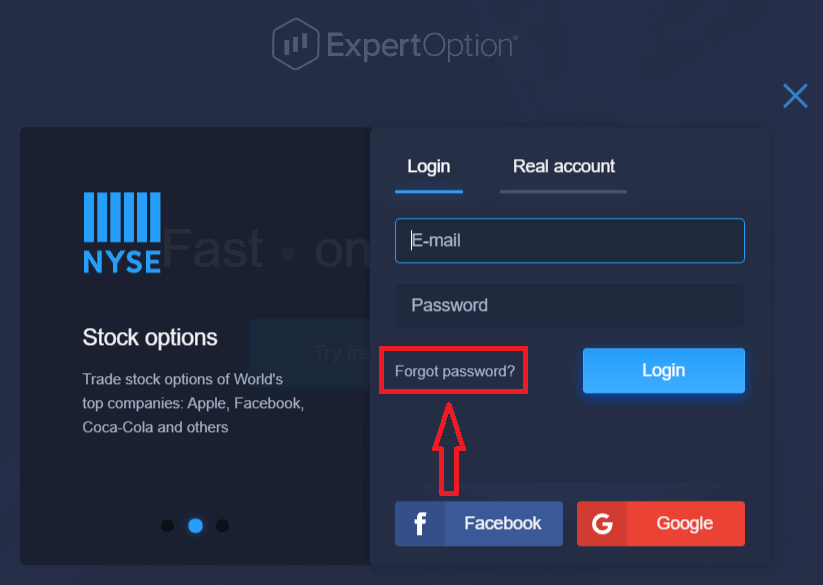
Then, the system will open a new form where you will be requested to restore your password for your ExpertOption account. You need to provide the system with the appropriate email address and click "Reset Password."
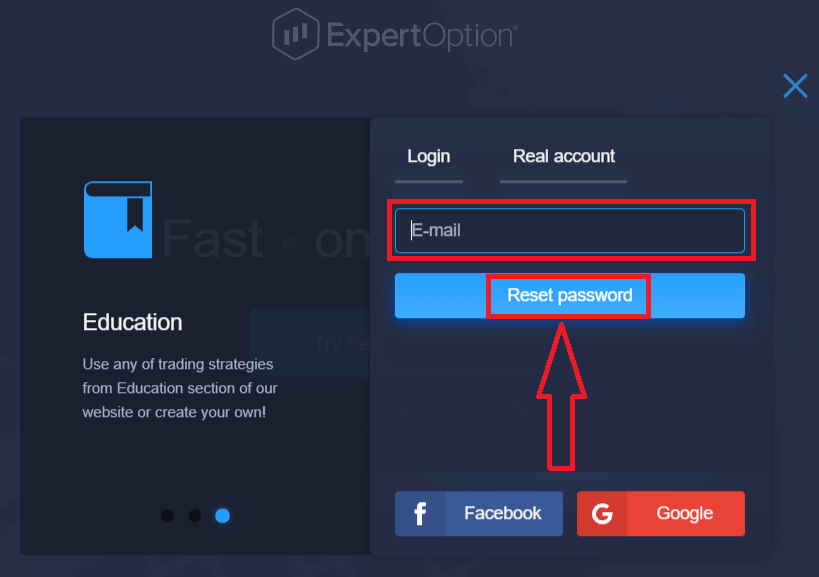
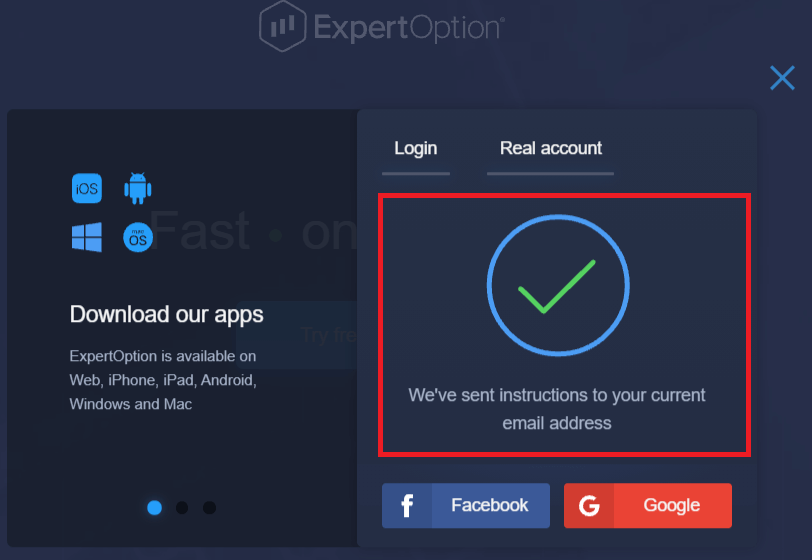
A notification will open that an email has been sent to this email address to reset the password.
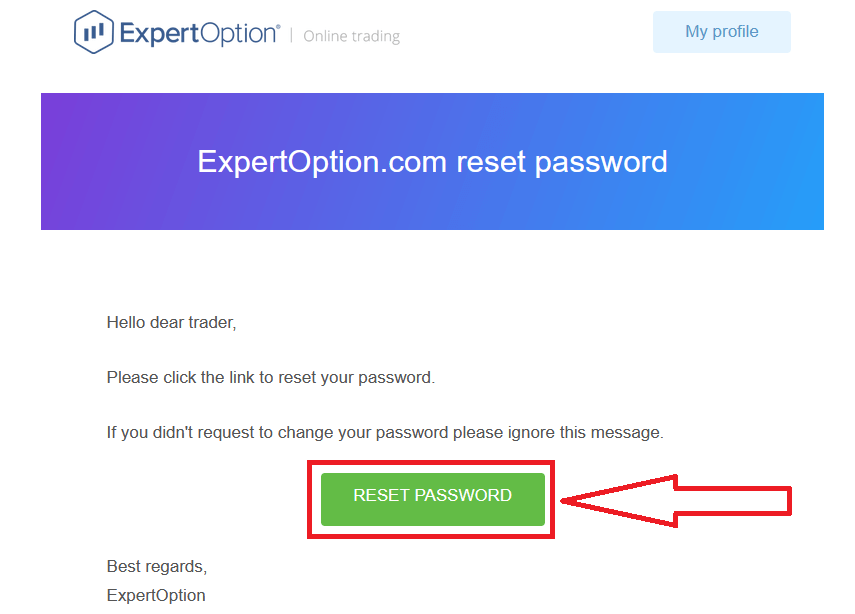
Further in the letter in your email, you will be offered to change your password. Click on the «Reset Password»
The link from the email will lead you to a special section on the ExpertOption website. Enter your new password here twice and click the "Change password" button.
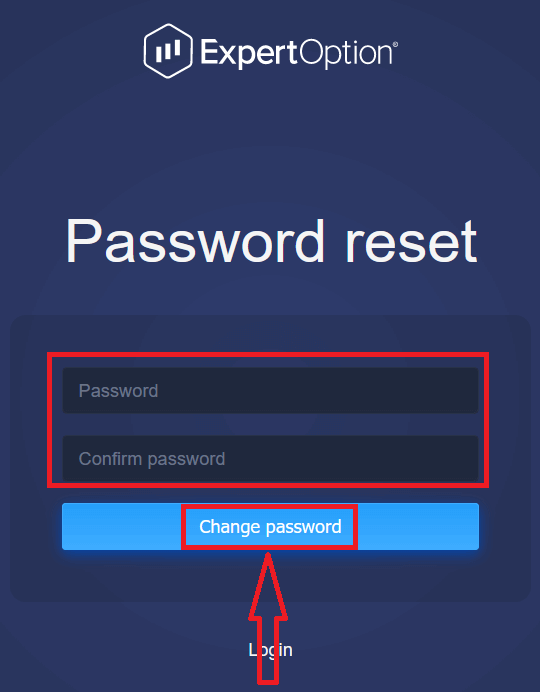
After entering "Password" and "Confirm password". A message will appear indicating that the password has been changed successfully.
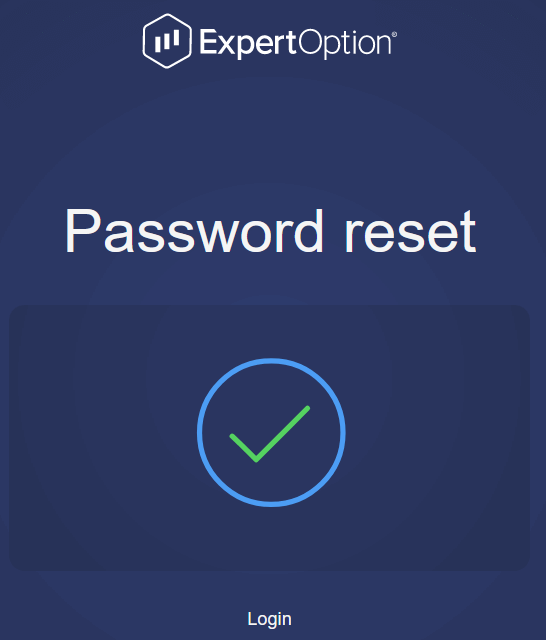
That’s it! Now you can log into the ExpertOption platform using your username and new password.
If you use the mobile application
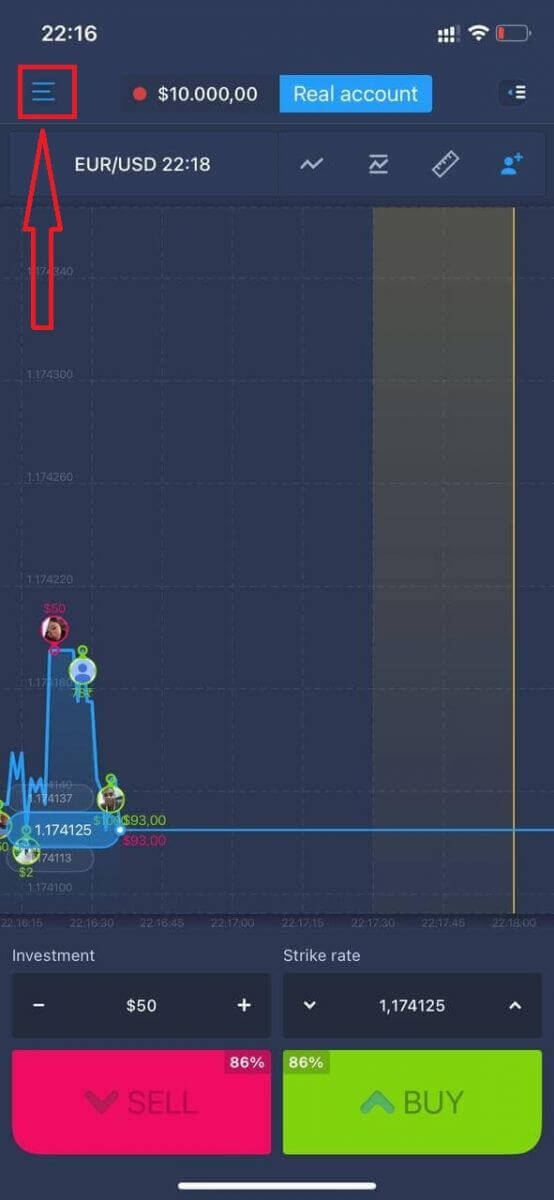
To do that, click the "Menu" icon.
Click "Login."
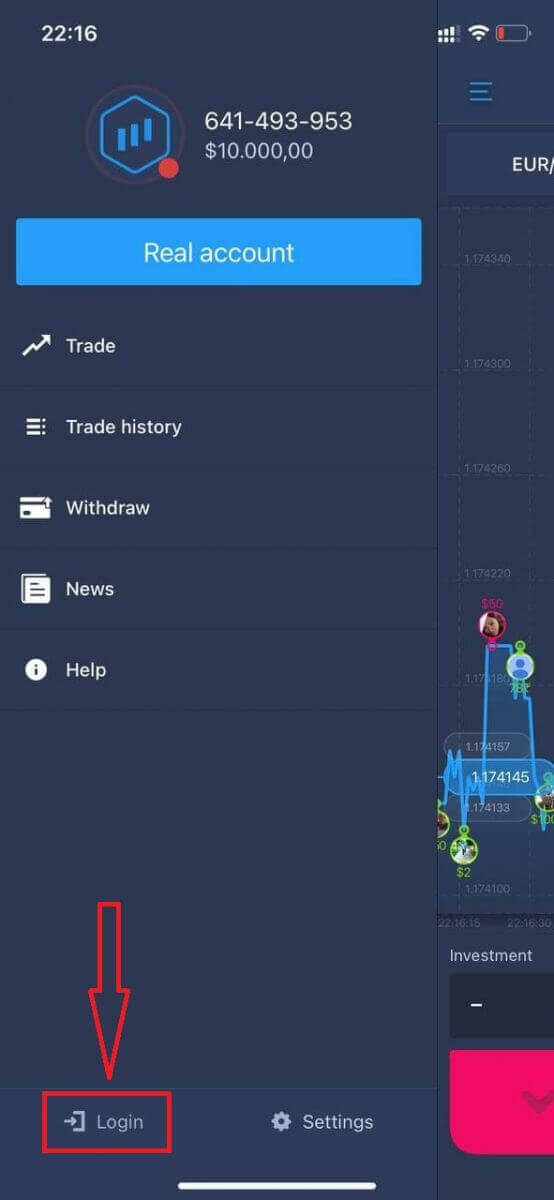
Click on the "Forgot password" link.
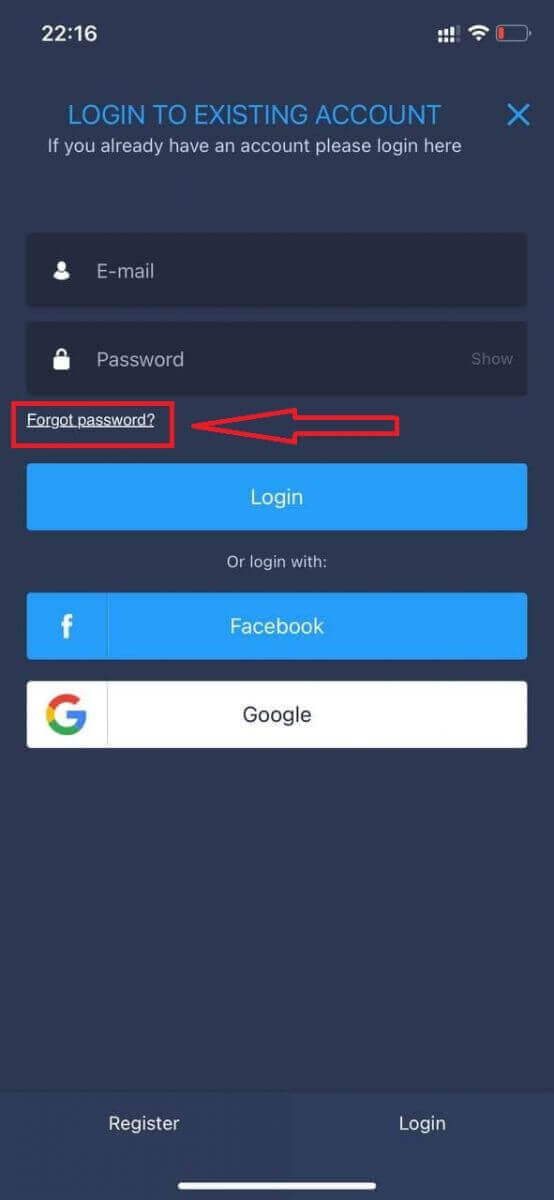
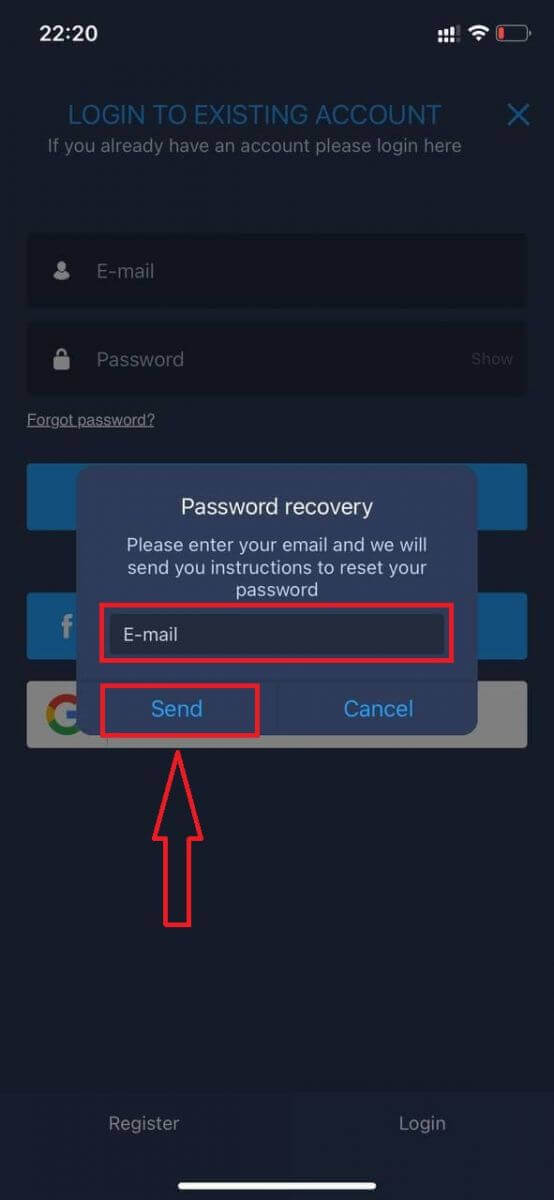
In the new window, enter the email you used during sign-up and click the "Send" button. Then do the same remaining steps as the web app.p
Log In to ExpertOption Mobile Web
If you want to trade on the mobile web version of the ExpertOption trading platform, you can easily do it. Initially, open up your browser on your mobile device. After that, search for “expertoption” and visit the official website of the broker.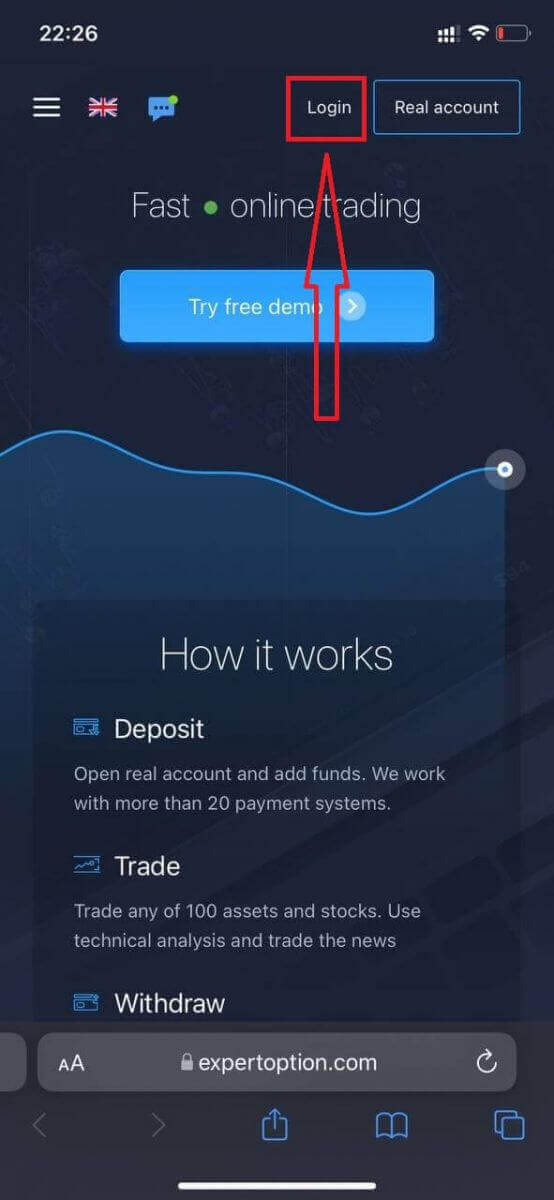
Enter your email and password, and then click on the “Login” button.
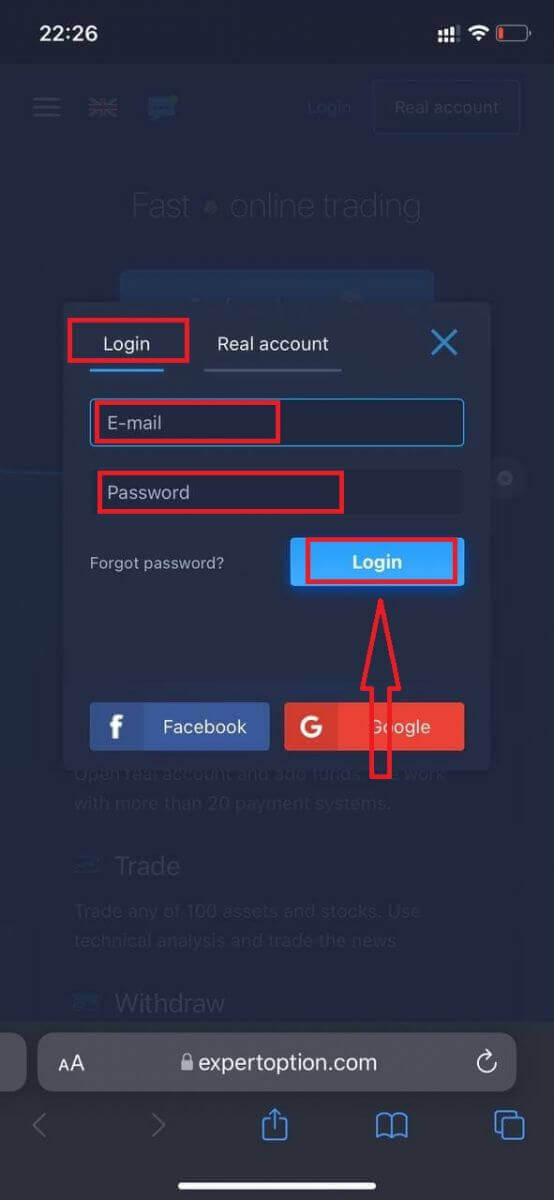
After logging in successfully, you will see the Deposit page. To start Live trading, you need to make an investment in your account (the minimum deposit is USD 10).
How to make a Deposit in ExpertOption
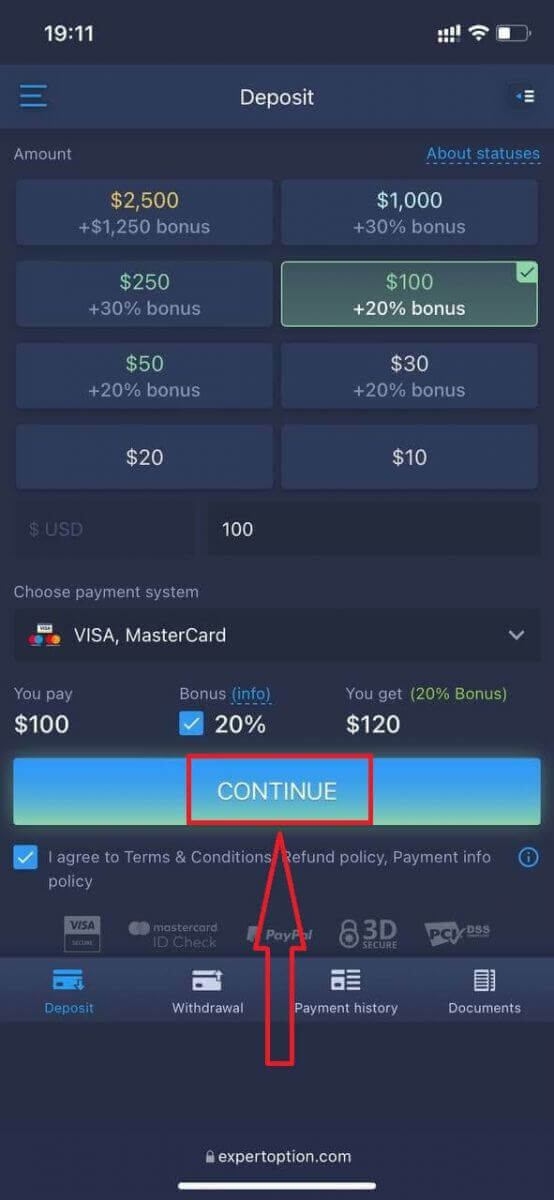
Enter the card data and click "Add funds ..."
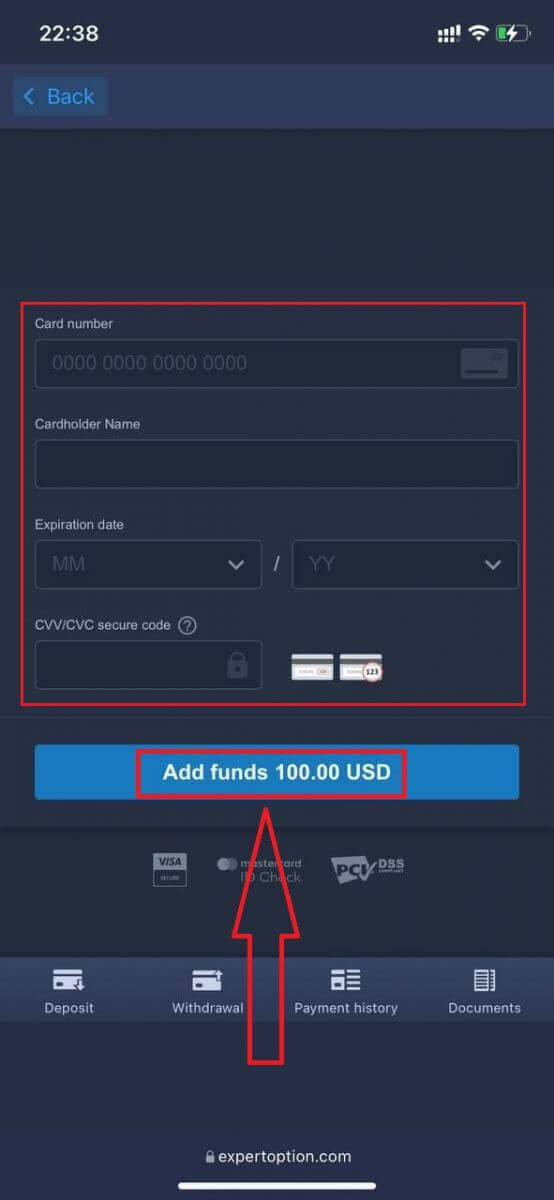
Now you can trade on a real account after depositing successfully.
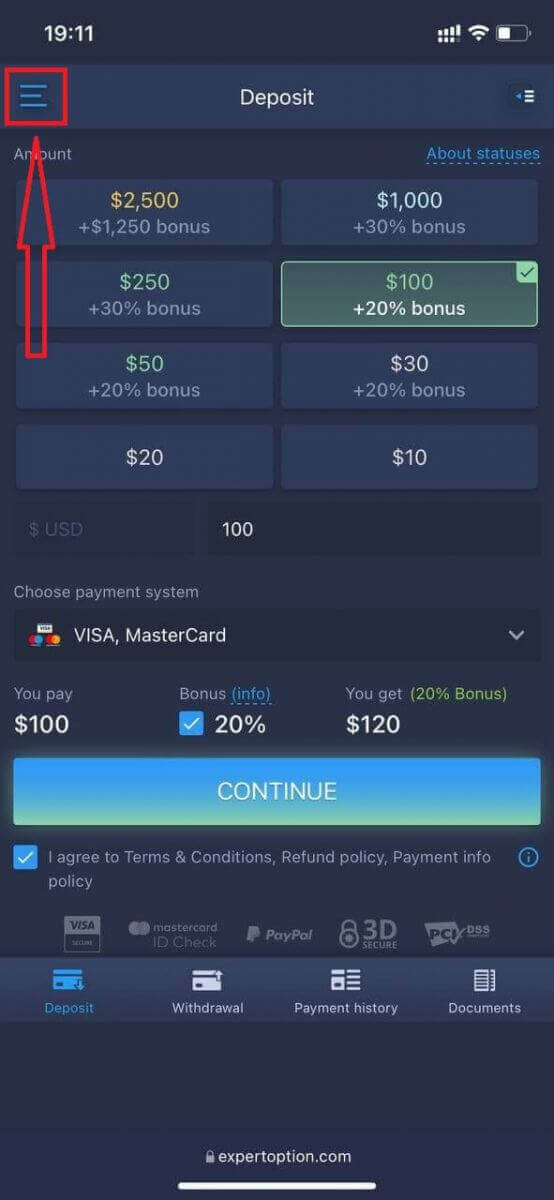
If you want to use the Demo Account, click the "Menu" icon.
Click "Trade."
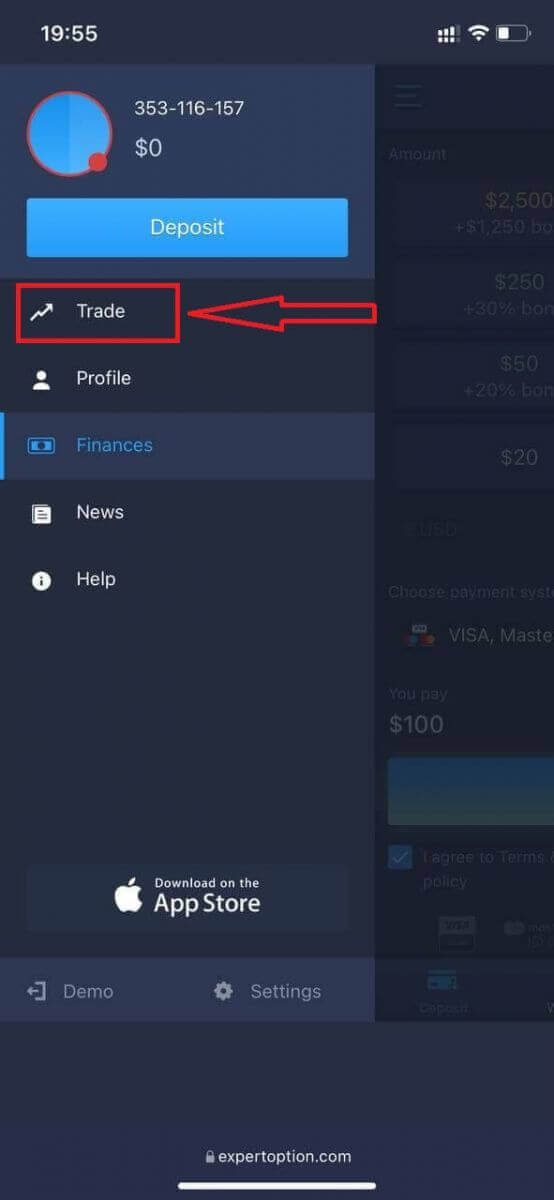
Switch accounts from the Real account to the Demo account.
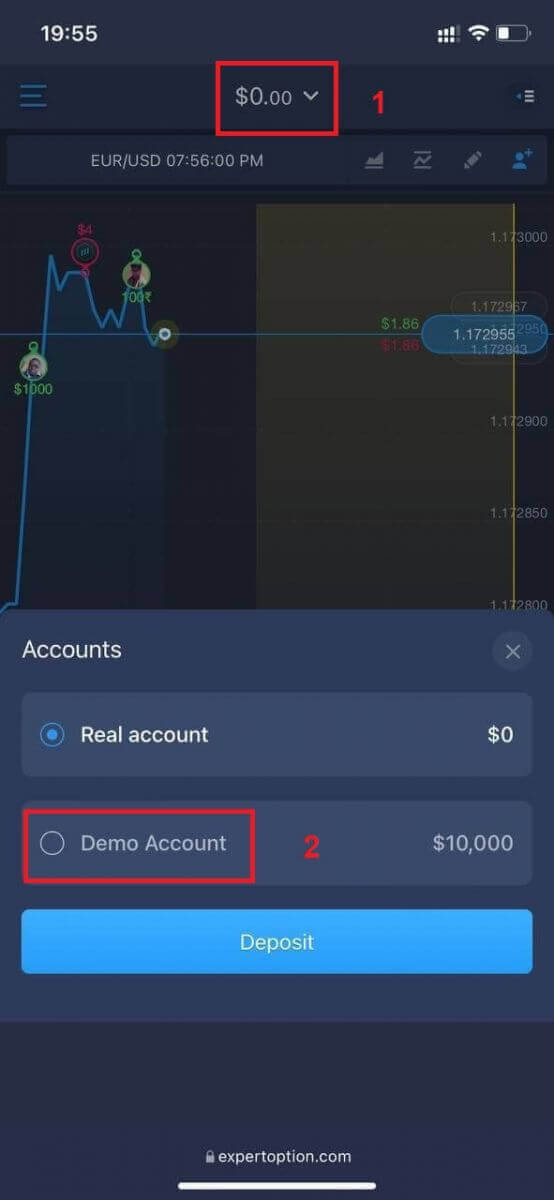
You will have $10,000 in the Demo account.
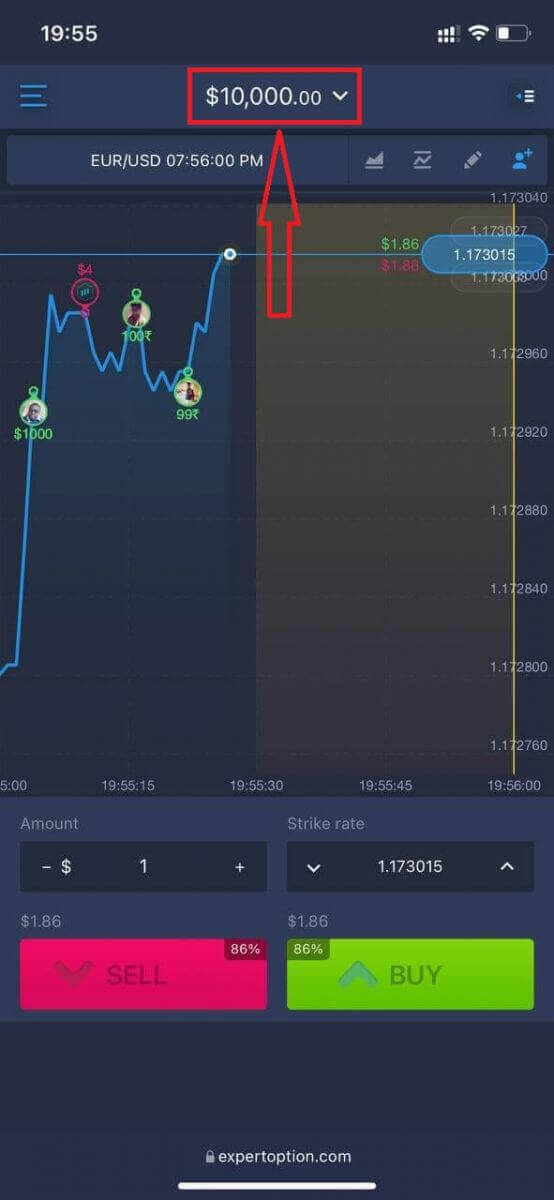
Now you can trade from the mobile web version of the platform. The mobile web version of the trading platform is exactly the same as the regular web version. Consequently, there won’t be any problems with trading and transferring funds.
How to Log In to the ExpertOption iOS App
Logging in on the iOS mobile platform is similar to logging in on the ExpertOption web app. The application can be downloaded through the App Store on your device, or click here. Simply search for “ExpertOption - Mobile Trading” app and click «GET» to install it on your iPhone or iPad.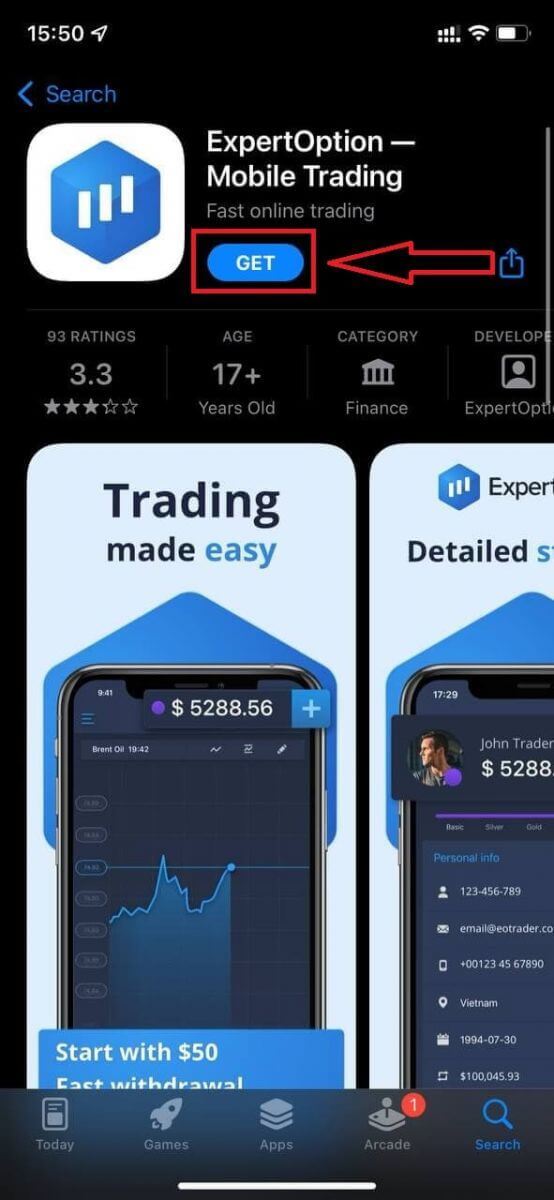
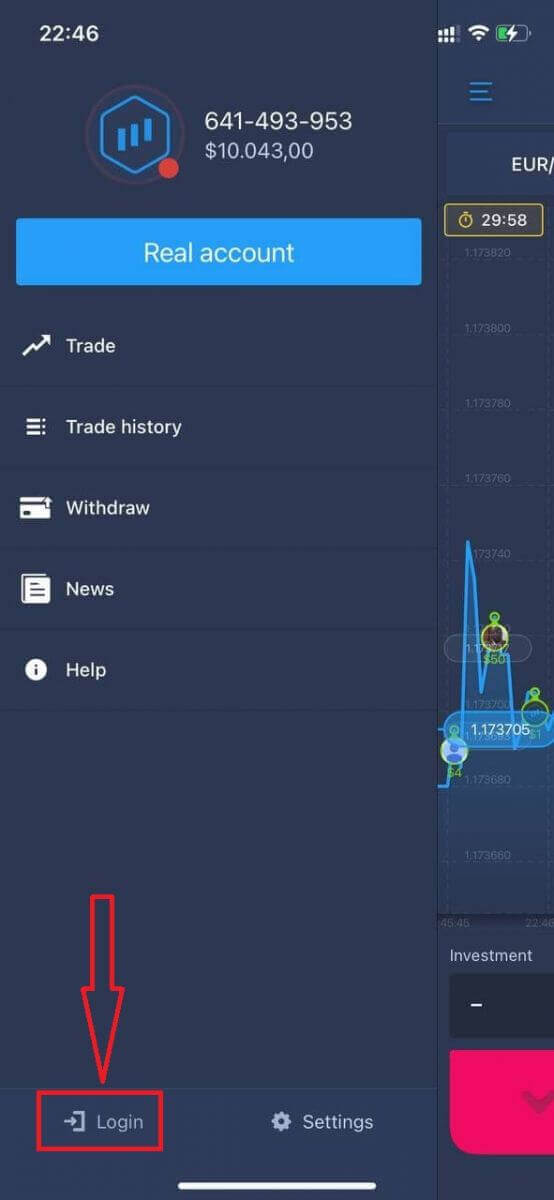
After installation and launching, you may log in to the ExpertOption iOS mobile app by using your email, Facebook, or Google. You just need to choose the "Menu" icon.
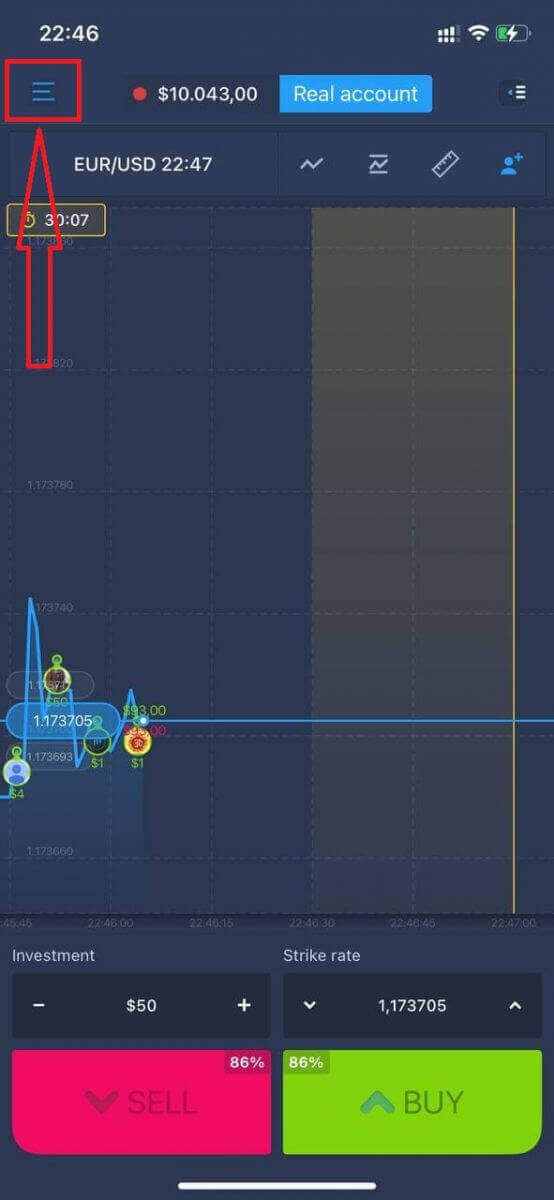
Click "Login."
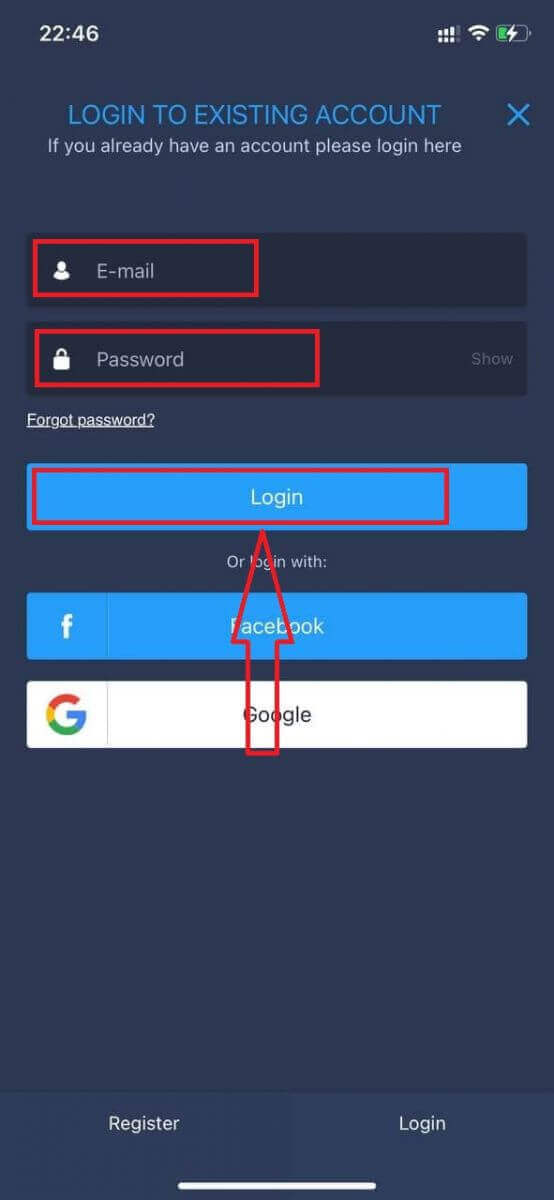
Enter your email and password, and then click on the “Login” button.
How to Log In to the ExpertOption Android App
You have to visit the Google Play store and search for "ExpertOption - Mobile Trading" to find this app, or click here.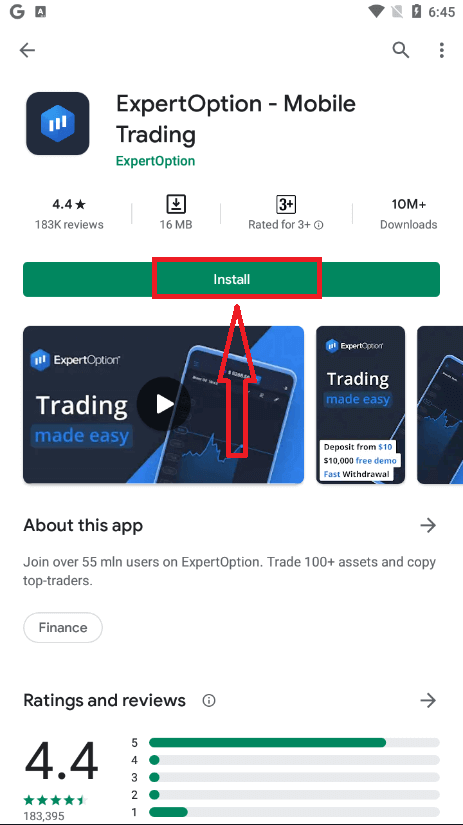
After installation and launching, you may log in to the ExpertOption Android mobile app by using your email, Facebook, or Google account.
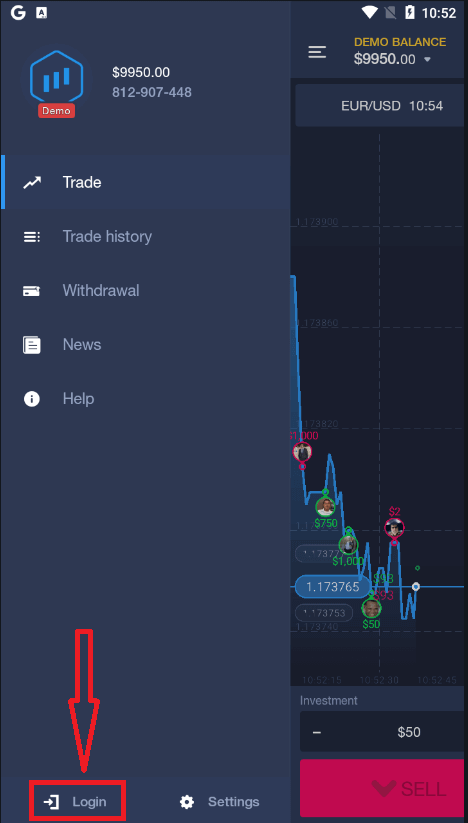
Do the same steps as on an iOS device, choose the "Menu" icon.
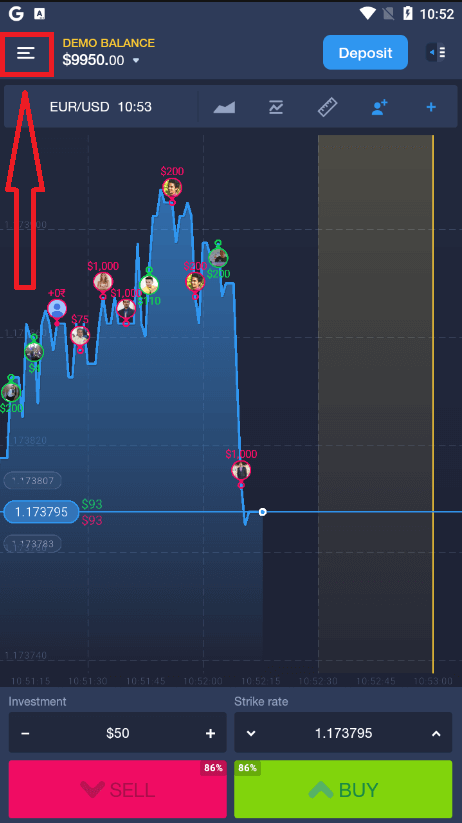
Click "Login."
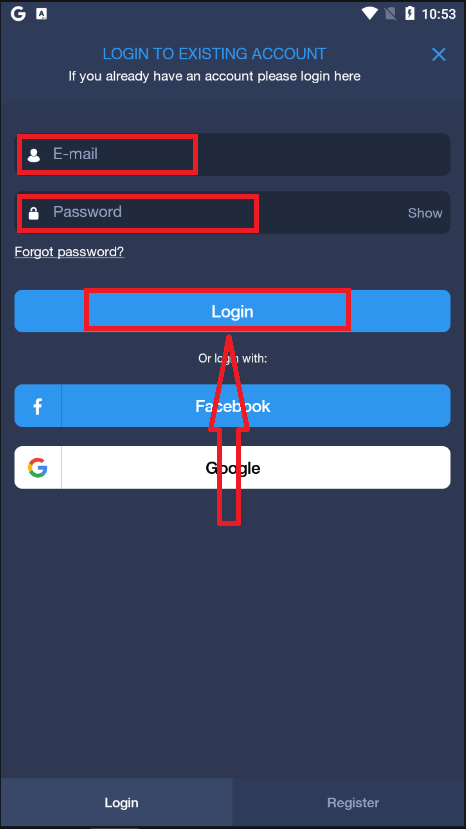
Enter your email and password, and then click on the “Login” button.
Conclusion: Take Your First Step with ExpertOption Today
Registering and logging in to ExpertOption is straightforward, designed to get you into the markets quickly and securely. By following these simple steps, you can create your account, access your dashboard, and start developing your trading strategies immediately. Whether using the demo account to practice or moving into live trading, ExpertOption offers a seamless experience to help you trade with confidence.